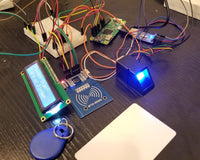

RFID Attendance System with Crowpanel 7" ESP32-S3 HMI Display

Table of Contents ▼
01 Overview
The expected output of the project is an RFID attendance system that displays the RFID card details upon scanning on the RC522 RFID module on the CrowPanel 7” Display. It allows the user to interact with the system via the CrowPanel’s touch screen capability. Users can see the history of scanned RFIDs and can see full details of associated RFIDs. The system resets every time it is powered down because it is not connected to a database. There is only a sample database that is hardcoded to the backend of the system.
Project Use Case
The RFID Attendance Monitoring System is used to record attendance in schools, offices, and other organizations. Users only need to tap their RFID cards on the RFID reader, and their information and attendance time will appear on the CrowPanel display. The system makes attendance checking faster, easier, and more organized compared to manual attendance recording.
02 Hardware and Software Components
Gather everything below before you start. This is your checklist — names, models, and versions only.
Hardware Components
| Component | Description |
|---|---|
| ESP32 Development Board | RFID processing microcontroller |
| CrowPanel 7" ESP32-S3 HMI Display | Main touchscreen display and GUI controller |
| MFRC522 RFID Reader | Attendance identification |
| RFID Cards / Tags | RFID details |
| Active Buzzer | Audible scan feedback |
| LED | Visual status indicator |
| Resistor | LED current limiting |
| Jumper Wires | Hardware connections |
| USB Cable | Power and programming |
Software Tools
| Software | Version / Details |
|---|---|
| Arduino IDE | 2.3.7 |
| ESP32 Board Package by Espressif Systems | 2.0.17 |
| LovyanGFX | Latest Version / CrowPanel display graphics library |
| MFRC522v2 Library | Latest Version / RFID reader communication |
Project Files
All required files are available in the project repository. Download the repository before proceeding to the Software Setup section.
| File | Description |
|---|---|
| rfid.ino | Main Arduino sketch for the RFID reader |
| draw.ino | Main Arduino sketch for the CrowPanel Display |
03 Application Discussion
Here is what each component does and why it is part of this project
ESP32 Development Board
The ESP32 development board serves as the primary controller for the RFID module and output devices. It processes scanned RFID cards, controls the buzzer and LED, and communicates with the CrowPanel display using UART serial communication.
CrowPanel 7" ESP32-S3 HMI Display
The CrowPanel acts as the graphical user interface of the system. It displays attendance information, history logs, user details, and touchscreen navigation controls.
MFRC522 RFID Reader
The MFRC522 RFID Reader detects RFID cards and reads their UID information using SPI communication.
Active Buzzer
The active buzzer provides audible feedback whenever an RFID card is successfully scanned.
LED
The LED acts as a visual indicator for RFID scan readiness and successful operation.
04 Hardware Setup
Circuit Diagram


Wire the components to the CrowPanel ESP32 board using the tables below.
MFRC522 to ESP32 Connections
| MFRC522 Pin | ESP32 Pin | Description |
|---|---|---|
| SDA | GPIO 5 | Slave Select / Chip Select |
| SCK | GPIO 18 | SPI Clock Signal |
| MOSI | GPIO 23 | Master Out Slave In Data |
| MISO | GPIO 19 | Master In Slave Out Data |
| IRQ | no connection | Not Used |
| RST | GPIO 21 | RFID Reset Pin |
| 3.3V | 3.3V | Power Supply |
| GND | GND | Ground Connection |
Other components (LED, Buzzer and CrowPanel Display) to ESP32 Connections
| Component | ESP32 Pin | Description |
|---|---|---|
| LED (+ / Longer Leg) | GPIO 13 | LED Output Signal |
| Buzzer (+ Pin) | GPIO12 | Buzzer Output Signal |
| Buzzer and LED (-) | GND | Ground Connection |
| IO44 (RX) | GPIO17 (TX) | UART Data Transmission |
| CrowPanel Display - IO43 (TX) | GPIO16 (RX) | UART Data Reception |
Assembly Instructions
- Connect the MFRC522 RFID module to the ESP32 using SPI pins.
- Connect the LED and buzzer to GPIO13 and GPIO12.
- Connect UART communication between ESP32 and CrowPanel.
- Upload the RFID sketch to the ESP32 board.
- Upload the CrowPanel GUI sketch to the CrowPanel ESP32-S3.
- Power both devices.
- Scan an RFID card near the RC522 reader.
- Observe attendance information displayed on the CrowPanel touchscreen.
05 Software Setup
Follow these steps in order. Do not skip the file replacement steps — they are required for this board to work correctly.
Step 1 — Install Arduino IDE
- Open a web browser and go to the official Arduino website.
- Download the latest version of the Arduino IDE compatible with your operating system.
- Run the installer after the download is complete.
- Follow the installation instructions and wait for the setup to finish.
- Open the Arduino IDE after installation.
-
Connect the ESP32 and CrowPanel devices to the computer using USB cables.
Step 2 — Modify Board Settings
- Open the Arduino IDE.
- Go to File > Preferences.
-
In the “Additional Boards Manager URLs” field, add the ESP32 board package link:
https://raw.githubusercontent.com/espressif/arduino-esp32/gh-pages/package_esp32_index.json - Click OK to save the settings.
- Go to Tools > Board > Boards Manager.
- Search for ESP32.
- Install the ESP32 board package by Espressif Systems.
-
After installation, Use exactly these settings in Arduino IDE under Tools.
| Setting | Value |
|---|---|
| Board | ESP32S3 Dev Module |
| Upload Speed | 921600 |
| CPU Frequency | 240MHz WiFi |
| Flash Frequency | 80MHz |
| Flash Mode | QIO |
| Flash Size | 4MB / 32Mb |
| Partition Scheme | HUGE APP (3 MB No OTA/1MB SPIFFS) |
| Core Debug Level | None |
| PSRAM | OPI PSRAM |
| Arduino Runs On | Core 1 |
| Arduino Handles WiFi/BT | Core 1 |
Step 3 — Install Libraries
- In the Arduino IDE, go to Sketch > Include Library > Manage Libraries.
-
Search and install the following libraries one by one:
- MFRC522v2
- SPI
-
LovyanGFX
- Wait for all libraries to finish installing before proceeding.
Step 4 — Upload RFID Reader Sketch
- Open the RFID Reader Sketch file in the Arduino IDE.
- Connect the ESP32 with the RC522 RFID reader to the computer using a USB cable.
- Select the ESP32 Dev Module under Tools > Board.
- Select the correct COM port under Tools > Port.
- Click the Verify button to compile the code and check for errors.
- After successful verification, click the Upload button.
- Wait for the upload process to complete.
-
Open the Serial Monitor and scan an RFID card to test if the UID is detected properly.
Step 5 — Upload CrowPanel GUI Sketch
- Open the CrowPanel GUI Sketch file in the Arduino IDE.
- Connect the CrowPanel 7” ESP32-S3 Display to the computer using a USB cable.
- Select the ESP32S3 Dev Module board under Tools > Board.
- Select the correct COM port under Tools > Port.
- Modify the Wi-Fi name and password in the code if needed.
- Click the Verify button to compile the code.
- Click the Upload button after successful verification.
- Wait for the upload process to finish.
- Connect the RX and TX pins between the ESP32 RFID module and the CrowPanel.
-
Power both modules and test the RFID attendance system by scanning an RFID card.
06 Code
Copy each file below and do not modify the code unless you understand what each part does — the Code Breakdown section explains it.
Main Sketch for RFID Reader (MFRC522) — rfid.ino
#define #include MFRC522v2.h
#include MFRC522DriverSPI.h
#include MFRC522DriverPinSimple.h
#include MFRC522Debug.h
#include SPI.h

#define RXD2 16
#define TXD2 17

#define BUZZER_PIN 12
#define LED_PIN 13

HardwareSerial mySerial(2);

MFRC522DriverPinSimple ss_pin(5);
MFRC522DriverSPI driver{ss_pin};
MFRC522 mfrc522{driver};


void beep(int duration)
{
  digitalWrite(BUZZER_PIN, HIGH);
  digitalWrite(LED_PIN, LOW);
  delay(duration);
  digitalWrite(BUZZER_PIN, LOW);
}

void setup() {
  Serial.begin(115200);

  pinMode(BUZZER_PIN, OUTPUT);
  pinMode(LED_PIN, OUTPUT);

  digitalWrite(BUZZER_PIN, LOW);

  mySerial.begin(9600, SERIAL_8N1, RXD2, TXD2);

  SPI.begin();
  mfrc522.PCD_Init();

  Serial.println("Scan RFID Card");
}

void loop() {
    digitalWrite(LED_PIN, HIGH);
  if (!mfrc522.PICC_IsNewCardPresent()) {
    return;
  }

  if (!mfrc522.PICC_ReadCardSerial()) {
    return;
  }

  String uidString = "";

  for (byte i = 0; i < mfrc522.uid.size; i++) {

    if (mfrc522.uid.uidByte[i] < 0x10) {
      uidString += "0";
    }

    uidString += String(mfrc522.uid.uidByte[i], HEX);
  }

  uidString.toUpperCase();

  Serial.print("UID: ");
  Serial.println(uidString);

  beep(1000);

  mySerial.println(uidString);

  delay(2000);
}
Main Sketch for CrowPanel 7" Display — draw.ino
#define LGFX_USE_V1
#include LovyanGFX.hpp
#include lgfx/v1/platforms/esp32s3/Panel_RGB.hpp
#include lgfx/v1/platforms/esp32s3/Bus_RGB.hpp
#include driver/i2c.h
#include WiFi.h
#include "time.h"
#include vector
struct RFIDLog {
    String uid;
    String name;
    String status;
    String time;
};
std::vectorRFIDLog rfidHistory;

/*******************************************************************************
   SELECT YOUR CROWPANEL
*******************************************************************************/
#define CrowPanel_70
// #define CrowPanel_50
// #define CrowPanel_43

/*******************************************************************************
   CROWPANEL 7.0"
*******************************************************************************/
#if defined(CrowPanel_70)

#define screenWidth 800
#define screenHeight 480

const char* ssid = "PLDTHOMEFIBR42250";
const char* password = "PLDTWIFIxw232";

const char* ntpServer = "pool.ntp.org";
const long gmtOffset_sec = 8 * 3600; // Philippines (GMT+8)
const int daylightOffset_sec = 0;
int screenMode = 0;
int x;
int y;
unsigned long uiStartTime = 0;
bool uiActive = false;
int historyIndex = 0;
const int ITEMS_PER_PAGE = 7;
const unsigned long UI_DISPLAY_TIME = 3000;

class LGFX : public lgfx::LGFX_Device
{
public:
    lgfx::Bus_RGB _bus_instance;
    lgfx::Panel_RGB _panel_instance;
    lgfx::Light_PWM _light_instance;
    lgfx::Touch_GT911 _touch_instance;
    LGFX(void)
    {
        {
            auto cfg = _panel_instance.config();

            cfg.memory_width = screenWidth;
            cfg.memory_height = screenHeight;
            cfg.panel_width = screenWidth;
            cfg.panel_height = screenHeight;

            cfg.offset_x = 0;
            cfg.offset_y = 0;

            _panel_instance.config(cfg);
        }

        {
            auto cfg = _bus_instance.config();

            cfg.panel = &_panel_instance;

            cfg.pin_d0  = GPIO_NUM_15;
            cfg.pin_d1  = GPIO_NUM_7;
            cfg.pin_d2  = GPIO_NUM_6;
            cfg.pin_d3  = GPIO_NUM_5;
            cfg.pin_d4  = GPIO_NUM_4;

            cfg.pin_d5  = GPIO_NUM_9;
            cfg.pin_d6  = GPIO_NUM_46;
            cfg.pin_d7  = GPIO_NUM_3;
            cfg.pin_d8  = GPIO_NUM_8;
            cfg.pin_d9  = GPIO_NUM_16;
            cfg.pin_d10 = GPIO_NUM_1;

            cfg.pin_d11 = GPIO_NUM_14;
            cfg.pin_d12 = GPIO_NUM_21;
            cfg.pin_d13 = GPIO_NUM_47;
            cfg.pin_d14 = GPIO_NUM_48;
            cfg.pin_d15 = GPIO_NUM_45;

            cfg.pin_henable = GPIO_NUM_41;
            cfg.pin_vsync   = GPIO_NUM_40;
            cfg.pin_hsync   = GPIO_NUM_39;
            cfg.pin_pclk    = GPIO_NUM_0;

            cfg.freq_write = 12000000;

            cfg.hsync_polarity    = 0;
            cfg.hsync_front_porch = 40;
            cfg.hsync_pulse_width = 48;
            cfg.hsync_back_porch  = 40;

            cfg.vsync_polarity    = 0;
            cfg.vsync_front_porch = 1;
            cfg.vsync_pulse_width = 31;
            cfg.vsync_back_porch  = 13;

            cfg.pclk_active_neg = 1;
            cfg.de_idle_high    = 0;
            cfg.pclk_idle_high  = 0;

            _bus_instance.config(cfg);
            _panel_instance.setBus(&_bus_instance);
        }

        {
            auto cfg = _light_instance.config();

            cfg.pin_bl = GPIO_NUM_2;

            _light_instance.config(cfg);
            _panel_instance.light(&_light_instance);
        }

        {
            auto cfg = _touch_instance.config();

            cfg.x_min = 0;
            cfg.x_max = 799;

            cfg.y_min = 0;
            cfg.y_max = 479;

            cfg.pin_int = -1;
            cfg.pin_rst = -1;

            cfg.bus_shared = true;

            cfg.offset_rotation = 0;

            cfg.i2c_port = I2C_NUM_1;

            cfg.pin_sda = GPIO_NUM_19;
            cfg.pin_scl = GPIO_NUM_20;

            cfg.freq = 400000;

            cfg.i2c_addr = 0x14;

            _touch_instance.config(cfg);
            _panel_instance.setTouch(&_touch_instance);
        }

        setPanel(&_panel_instance);
    }
};

#endif

/*******************************************************************************
   CREATE DISPLAY OBJECT
*******************************************************************************/
LGFX tft;

/*******************************************************************************
   UART COMMUNICATION
*******************************************************************************/

// RX = GPIO18
// TX = GPIO17


HardwareSerial RFIDSerial(1);

String receivedUID = "";
String cardOwner = "";
String accessStatus = "";
String department = "";
String birthdate = "";

/*******************************************************************************
   FUNCTION: CHECK RFID UID
*******************************************************************************/
void checkCard(String uid)
{
    String timeNow = getTimeStamp();
    uid.toUpperCase();
    // EXAMPLE DATABASE
    if (uid == "67AFD75B")
    {
        cardOwner = "Matthew";
        accessStatus = "ACCESS GRANTED";
        department = "CPE";
        birthdate = "February 3, 2005";
    }
    else if (uid == "44C66F9F")
    {
        cardOwner = "Jpp";
        accessStatus = "ACCESS GRANTED";
        department = "CPE";
        birthdate = "March 2, 2005";
    }
    else if (uid == "7ABEC6DE")
    {
        cardOwner = "Ben";
        accessStatus = "ACCESS GRANTED";
        department = "CPE";
        birthdate = "March 9, 2005";
    }
    else if (uid == "0ABF5FDE")
    {
        cardOwner = "Keen";
        accessStatus = "ACCESS GRANTED";
        department = "CPE";
        birthdate = "November 2, 2001";
    }
    else if (uid == "3A8545DF")
    {
        cardOwner = "Kenji";
        accessStatus = "ACCESS GRANTED";
        department = "ECE";
        birthdate = "May 24, 2003";
    }
    else
    {
        cardOwner = "UNKNOWN";
        accessStatus = "ACCESS DENIED";
    }

    Serial.println("Scan Time: " + timeNow);

    RFIDLog log;
    log.uid = uid;
    log.name = cardOwner;
    log.status = accessStatus;
    log.time = timeNow;

    rfidHistory.push_back(log);
}

/*******************************************************************************
   FUNCTION: DRAW UI
*******************************************************************************/
void drawUI()
{
    tft.fillScreen(TFT_BLACK);

    // ===== HEADER =====
    tft.fillRect(0, 0, 800, 60, TFT_BLUE);

    tft.setTextColor(TFT_WHITE);
    tft.setTextSize(3);
    tft.setCursor(20, 15);
    tft.println("RFID ATTENDANCE SYSTEM");

    // ===== STATUS =====
    if (accessStatus == "ACCESS GRANTED")
        tft.setTextColor(TFT_GREEN);
    else
        tft.setTextColor(TFT_RED);

    tft.setTextSize(4);
    tft.setCursor(80, 100);
    tft.println(accessStatus);

    // ===== UID BOX =====
    tft.drawRect(50, 170, 700, 60, TFT_WHITE);

    tft.setTextColor(TFT_WHITE);
    tft.setTextSize(3);
    tft.setCursor(60, 185);
    tft.println("UID: " + receivedUID);

    // ===== NAME BOX =====
    tft.drawRect(50, 250, 700, 60, TFT_WHITE);

    tft.setCursor(60, 265);
    tft.println("NAME: " + cardOwner);

    // ===== TIME BOX =====
    tft.drawRect(50, 330, 700, 60, TFT_WHITE);

    tft.setCursor(60, 345);
    tft.println("TIME: " + getTimeStamp());

    // ===== BUTTON (bottom-right) =====
    tft.fillRect(620, 410, 160, 60, TFT_DARKGREY);

    tft.setTextColor(TFT_WHITE);
    tft.setTextSize(2);
    tft.setCursor(635, 430);
    tft.println("DETAILS");
}

String getTimeStamp()
{
  struct tm timeinfo;
  if (!getLocalTime(&timeinfo)) {
    return "TIME ERROR";
  }

  char buffer[30];
  strftime(buffer, sizeof(buffer), "%Y-%m-%d %H:%M:%S", &timeinfo);

  return String(buffer);
}
void drawDetailsScreen()
{
    tft.fillScreen(TFT_BLACK);

    tft.fillRect(0, 0, 800, 60, TFT_ORANGE);

    tft.setTextColor(TFT_BLACK);
    tft.setTextSize(3);
    tft.setCursor(20, 15);
    tft.println("RFID DETAILS SCREEN");

    tft.setTextColor(TFT_WHITE);
    tft.setTextSize(3);

    tft.setCursor(50, 80);
    tft.println("FULL INFORMATION:");

    tft.setCursor(50, 120);
    tft.println("UID: " + receivedUID);

    tft.setCursor(50, 180);
    tft.println("NAME: " + cardOwner);

    tft.setCursor(50, 240);
    tft.println("STATUS: " + accessStatus);

    tft.setCursor(50, 300);
    tft.println("TIME: " + getTimeStamp());
    if(accessStatus == "ACCESS GRANTED")
    {
      tft.setCursor(50, 360);
      tft.println("DEPARTMENT: " + department);

      tft.setCursor(50, 420);
      tft.println("BIRTHDATE: " + birthdate);
    }

    // BACK BUTTON
    tft.fillRect(620, 410, 160, 60, TFT_BLUE);

    tft.setTextColor(TFT_WHITE);
    tft.setTextSize(2);
    tft.setCursor(660, 430);
    tft.println("BACK");
}
void checkTouch()
{
    if (tft.getTouch(&x, &y))
    {
        // =========================
        // MAIN BUTTON (RIGHT SIDE)
        // =========================
        if (x > 620 && x < 780 && y > 410 && y < 470)
        {
            if (screenMode == 0) // HOME
            {
                screenMode = 3;
                drawHistoryScreen();
            }
            else if (screenMode == 1) // RFID SCANNED
            {
                screenMode = 2;
                drawDetailsScreen();
            }
            else if (screenMode == 2) // DETAILS
            {
                screenMode = 0;
                drawHomeScreen();
            }
            else if (screenMode == 3) // HISTORY
            {
                screenMode = 0;
                drawHomeScreen();
            }

            delay(300);
        }

        // HISTORY SCREEN CONTROLS
if (screenMode == 3)
{
    // ================= UP =================
    if (x > 680 && x < 760 && y > 100 && y < 160)
    {
        if (historyIndex >= ITEMS_PER_PAGE)
        {
            historyIndex -= ITEMS_PER_PAGE;
            drawHistoryScreen();
        }
        delay(200);
    }

    // ================= DOWN =================
    if (x > 680 && x < 760 && y > 190 && y < 250)
    {
        if (historyIndex + ITEMS_PER_PAGE < rfidHistory.size())
        {
            historyIndex += ITEMS_PER_PAGE;
            drawHistoryScreen();
        }
        delay(200);
    }
}
    }
}
void drawHomeScreen()
{
    tft.fillScreen(TFT_BLACK);

    tft.setTextColor(TFT_CYAN);
    tft.setTextSize(4);
    tft.setCursor(240, 180);
    tft.println("SCAN READY");

    tft.setTextColor(TFT_WHITE);
    tft.setTextSize(2);
    tft.setCursor(260, 260);
    tft.println("Tap RFID Card");

    tft.fillRect(620, 410, 160, 60, TFT_BLUE);

    tft.setTextColor(TFT_WHITE);
    tft.setTextSize(2);
    tft.setCursor(660, 430);
    tft.println("HISTORY");
}
void drawHistoryScreen()
{
    tft.fillScreen(TFT_BLACK);

    tft.setTextColor(TFT_ORANGE);
    tft.setTextSize(3);
    tft.setCursor(200, 20);
    tft.println("RFID HISTORY");

    tft.setTextSize(2);
    tft.setTextColor(TFT_WHITE);

    int y = 80;

    for (int i = historyIndex;
     i < historyIndex + ITEMS_PER_PAGE &&
     i < rfidHistory.size();
     i++)
{
    String line = String(i + 1) + ". " +
                  rfidHistory[i].uid + " - " +
                  rfidHistory[i].name + " - " +
                  rfidHistory[i].status;

    tft.setCursor(30, y);
    tft.println(line);

    tft.setCursor(30, y + 20);
    tft.println(rfidHistory[i].time);

    y += 50;
}

    // =========================
    // UP BUTTON
    // =========================
    tft.fillRect(680, 100, 80, 60, TFT_BLUE);

    tft.setTextColor(TFT_WHITE);
    tft.setCursor(705, 122);
    tft.println("UP");

    // =========================
    // DOWN BUTTON
    // =========================
    tft.fillRect(680, 190, 80, 60, TFT_BLUE);

    tft.setCursor(690, 212);
    tft.println("DOWN");

    // =========================
    // BACK BUTTON
    // =========================
    tft.fillRect(600, 390, 160, 60, TFT_RED);

    tft.setCursor(645, 412);
    tft.println("BACK");
}
/*******************************************************************************
   SETUP
*******************************************************************************/
void setup()
{
    WiFi.begin(ssid, password);

    while (WiFi.status() != WL_CONNECTED)
    {
      delay(500);
      Serial.print(".");
    }

    configTime(gmtOffset_sec, daylightOffset_sec, ntpServer);
    Serial.begin(115200);

    // UART
    RFIDSerial.begin(9600, SERIAL_8N1, 44, 43);

    // DISPLAY INIT
    tft.init();

    tft.setRotation(0);

    drawHomeScreen();
    screenMode = 0;
}

/*******************************************************************************
   LOOP
*******************************************************************************/
void loop()
{
  if (screenMode == 1 && uiActive && millis() - uiStartTime >= UI_DISPLAY_TIME)
  {
    uiActive = false;
    screenMode = 0;
    drawHomeScreen();
  }
  if (RFIDSerial.available())
  {
    receivedUID = RFIDSerial.readStringUntil('\n');
    receivedUID.trim();

    checkCard(receivedUID);

    screenMode = 1;
    drawUI();

    uiStartTime = millis();
    uiActive = true;
  }
    checkTouch();
}
07 Code Breakdown
Libraries (RFID Reader Sketch File)
| Library | Purpose |
|---|---|
| MFRC522v2.h | This library is used to communicate with the MFRC522 RFID reader module and read RFID card information. |
| MFRC522DriverSPI.h | This library enables SPI communication between the ESP32 and the RFID reader. |
| MFRC522DriverPinSimple.h | This library is used to define and configure the RFID module’s Slave Select (SS) pin. |
| MFRC522Debug.h | This library provides debugging functions for checking RFID communication and errors. |
| SPI.h | This library handles SPI communication required by the RFID module. |
Key Functions (RFID Reader Sketch File)
setup()
This part of the code handles the initialization of the serial monitor and the necessary pins to be used on the ESP32. Pins 16 and 17 are the RX & TX pins of the ESP32 which is responsible for sending & receiving data from the sensor.
loop()
This part of the code handles the passing of the UID to the Crowpanel and the standby mode of the system when no RFID is being scanned. This also handles the beeping sound of the buzzer and the operation of the lighting of the LED.
Code Components in RFID Reader Sketch File
| Component / Function | Purpose |
|---|---|
| beep(int duration) | Controls the buzzer sound and LED indicator whenever an RFID card is scanned. |
General Program Workflow (RFID Reader Sketch File)
- Initialize the ESP32 serial communication, SPI communication, RFID reader, LED, and buzzer during startup.
- Wait for an RFID card to be placed near the RC522 RFID reader.
- Detect if a new RFID card is present.
- Read the UID of the scanned RFID card.
- Convert the UID into a readable string format.
- Activate the buzzer and LED to indicate a successful scan.
- Send the UID data to the CrowPanel display using UART serial communication.
- Return to standby mode and wait for another RFID scan.
Libraries (CrowPanel Display Sketch File)
| Library | Purpose |
|---|---|
| LovyanGFX.hpp | This library is used to control the graphics and display functions of the CrowPanel. |
| Panel_RGB.hpp | This library configures the RGB display panel settings of the CrowPanel. |
| Bus_RGB.hpp | This library manages RGB bus communication for the display. |
| driver/i2c.h | This library handles I2C communication used by the touchscreen controller. |
| WiFi.h | This library enables Wi-Fi connectivity for internet access and time synchronization. |
| time.h | This library is used to obtain real-time date and time from the internet. |
| vector | This library stores and manages the RFID attendance history dynamically. |
Key Functions (CrowPanel Display Sketch File)
setup()
This part of the code handles the initialization of the home screen display and the necessary pins to be used on the ESP32S3 module of the Crowpanel. GPIO 43 and 44 are the RX & TX pins of the Crowpanel which is responsible for sending & receiving data from the sensor. It also initializes the connection of the ESP32S3 module to the internet to handle the proper time logging of the attendance system.
loop()
This part of the code handles all the display methods whenever a card is scanned and the general sequence of all the methods that work together to properly display the application.
Code Components in CrowPanel Display Sketch File
| Component / Function | Purpose |
|---|---|
| checkCard(String uid) | This part of the code handles checking of the RFID card that has been scanned in the RFID reader whether it has access or not. You can also edit this part of the code if you want to add or remove RFID cards in the system. |
| drawUI() | Displays the RFID scan result screen including UID, name, status, and time. |
| drawHomeScreen() |
This handles the screen display upon activation of the system |
| drawDetailsScreen() |
This handles the display process of the details associated with an RFID upon scanning. |
| drawHistoryScreen() |
This part of the code handles saving and displaying the history of RFID scans. |
| checkTouch() | This part of the code handles all the user inputs under specific conditions and displays specific screens based on those conditions. |
| getTimeStamp() |
This handles the fetching of the accurate time upon initialization of the system. |
General Program Workflow (CrowPanel Display Sketch File)
- Initialize the CrowPanel display, touchscreen, Wi-Fi connection, and UART communication during startup.
- Display the home screen showing that the system is ready for RFID scanning.
- Wait for RFID UID data from the ESP32 RFID reader module.
- Receive the UID and check if it exists in the hardcoded sample database.
- Retrieve the associated user information such as name, department, and status.
- Obtain the current date and time from the internet for attendance logging.
- Display the RFID scan result including UID, name, status, and timestamp.
- Save the RFID scan record into the attendance history list.
- Allow users to navigate through the touchscreen interface to view details or attendance history.
-
Return to the home screen after a certain period of inactivity and wait for another RFID scan.
08 Testing and Calibration
After uploading, check the following to ensure the system is functioning properly.
RFID Reader Test
This test checks if the RFID reader can properly detect and read RFID cards. The Serial Monitor should be opened at 115200 baud, and when a card is scanned, the UID number such as “UID: 67AFD75B” should appear on the screen. This confirms that the RFID reader and ESP32 are working correctly.
CrowPanel Display Test
This test checks if the CrowPanel display and touchscreen are functioning properly. The screen should display “SCAN READY” while waiting for a card scan. After scanning an RFID card, the attendance information should appear on the display, and the touchscreen buttons should respond correctly when pressed.
UART Communication Test
This test verifies the communication between the RFID ESP32 module and the CrowPanel through RX and TX connections. The scanned RFID UID should appear on the CrowPanel quickly without delays. Correct RX and TX wiring should also allow smooth and stable serial communication between both devices.
Valid RFID Test
This test checks if the system can recognize registered RFID cards. When a valid RFID card is scanned, the system should display “Access Granted,” show the user’s details, update the attendance history, and activate the buzzer sound to confirm successful access.

Invalid RFID Test
This test checks how the system handles unknown or unregistered RFID cards. When an invalid card is scanned, the system should display “Access Denied” while still showing the scanned UID. The event should also be recorded in the attendance history for monitoring purposes.

09 System Demonstration
Video Demonstration
10 Conclusion
The RFID Attendance Monitoring System successfully demonstrates the integration of RFID technology, touchscreen display systems, and serial communication using ESP32-based hardware. The project provides an efficient and user-friendly attendance monitoring solution capable of displaying real-time attendance information, RFID history logs, and detailed user information.
The use of the CrowPanel touchscreen interface improves the overall user experience while the ESP32 and MFRC522 RFID Reader provide reliable RFID scanning and communication capabilities. Although the system currently uses a hardcoded database and temp
Possible Improvements and Future Enhancements
- Add a database to save attendance records permanently
- Create a web or mobile app for real-time attendance monitoring
- Allow users to register and manage RFID cards using the touchscreen display
- Add attendance reports and summaries for easier tracking
- Improve security by adding fingerprint or face recognition with RFID scanning
11 References
- Random Nerd Tutorials - ESP32 MFRC522 RFID Reader
- Youtube - Get Started with ESP32: Lesson 02 - Draw GUI with LovyanGFX
-
CrowPanel 7" ESP32-S3 HMI Display Documentation
12 Project Authors
- Matthew Vincent G. Bacaling
- Japhet Prince J. Pesic
Quality Checked by:
- John Ronan Limbadan
- Alexander B. Maiso