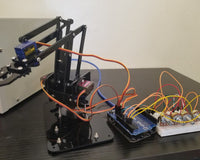

Robot Arm using PCA9685 PWM Servo Driver and SG-90 Servo Motor

Table of Contents ▼
01 Overview
Project Use Case
- This project is useful for simple, repetitive tasks. It is especially useful in factories because it has a lot of repetitive tasks due to long production lines of the same product.
02 Hardware and Software Components
Prepare all the required components and materials before starting. This checklist only includes the names, models, and versions needed for the project.
Hardware Components
| Component | Description |
|---|---|
| Arduino UNO Board | Servo Motor processing microcontroller |
| PCA9685 PWM Driver | Connection between Arduino UNO and Servo Motors |
| SG-90 Servo motor | Movement capability of the robot arm |
| Acrylic Components | Robot arm components |
| Jumper Wires | Hardware connections |
| External 5V Supply | S]Power supply for the components |
Software Tools
| Software | Version / Details |
|---|---|
| Arduino IDE | 2.3.9 |
| Adafruit PWM Servo Driver | 2.4.0 |
Project Files
| File | Description |
|---|---|
| Robot_arm.ino | Main Arduino sketch for the Robot Arm movement sequence |
03 Application Discussion
Here is what each component does and why it is part of this project.
Arduino UNO Board
The Arduino UNO development board serves as the primary controller for the servo motors. It controls the movement of each motor.
PCA9685 PWM Driver
The PWM Driver acts as the main connector between the Arduino UNO board and the SG-90 servo motors. It allows the Arduino UNO board to control multiple motors using 2 communication pins.
SG-90 Servo Motor
The servo motor allows movement for each segment of the robot arm.
Acrylic Components
These are like puzzle pieces that connect and form the robot arm.
Jumper Wires
These provide the necessary connections for the robot arm to work.
04 Hardware Setup
Wire the components by following the circuit diagram. You can also use the tables below as a guide for the connections.

PCA9685 to Arduino Connections
| pca9685 Pin | Arduino Pin | Description |
|---|---|---|
| SDA | A4 | Data highway |
| SCL | A5 | Clock pulse |
| VCC | VIN | Power Supply |
| GND | GND | Ground Connection |
Assembly Instructions
- Assemble the Robot Arm (might take a while).
- Connect the SDA pin of PCA9685 to A4 of Arduino.
- Connect the SCL pin of PCA9685 to A5 of Arduino.
- Connect the VCC and GND of PCA9685 to VIN and GND, respectively, on the Arduino Board
- Connect the 4 motors to I/O pins 4,5,6,7 of the PCA9685 PWM Driver
- Connect the middle positive and negative sides of the PCA9685 PWM Driver to the 5V and GND pins, respectively, on the Arduino Board.
- Upload the Robot_arm sketch file into the Arduino UNO Board by connecting the Arduino Board to the PC.
- Once the code has been uploaded, disconnect the Arduino from the PC and use an external 5V supply to power the Arduino by plugging it into the DC Jacket of the Arduino board.
05 Software Setup
Follow these steps in order. Do not skip the file replacement steps — they are required for this board to work correctly.
Step 1 — Install Arduino IDE
- Open a web browser and go to the official Arduino website.
- Download the latest version of the Arduino IDE compatible with your operating system.
- Run the installer after the download is complete.
- Follow the installation instructions and wait for the setup to finish.
- Open the Arduino IDE after installation.
-
Connect the Arduino UNO Board device to the computer using USB cables.
Step 2 — Install Adafruit PWM Servo Driver Library
-
Open the Arduino IDE.
- Go to Tools > Manage Libraries.
-
Search for AdaFruit PWM Servo Driver Library and click Install.
| Setting | Value |
|---|---|
| Board | Arduino UNO |
Step 3 — Upload Robot Arm Sketch
- Open the Robot Arm Sketch file in the Arduino IDE.
- Follow all assembly instructions
- Select the Arduino UNO Board under Tools > Board.
- Select the correct COM port under Tools > Port.
- Click the Verify button to compile the code and check for errors.
- After successful verification, click the Upload button.
-
Wait for the upload process to complete.
NOTE: ENSURE THAT THE ROBOT ARM HAS A SOLID BASE TO AVOID IT FROM FALLING OVER
06 Code
Copy the file below and do not modify the code unless you understand what each part does — the Code Breakdown section explains it.
Main Sketch for Robot Arm — Robot_arm.ino
#define /*Robot arm control with Arduino
   https://srituhobby.com
*/

#include
#include

Adafruit_PWMServoDriver srituhobby = Adafruit_PWMServoDriver();

#define servo1 4
#define servo2 5
// #define servo3 6
#define servo4 7


void setup() {
  Serial.begin(9600);
  srituhobby.begin();
  srituhobby.setPWMFreq(60);
  srituhobby.setPWM(servo1, 0, 400);
  srituhobby.setPWM(servo2, 0, 150);
  // srituhobby.setPWM(servo3, 0, 260);
  srituhobby.setPWM(servo4, 0, 150);
  delay(3000);
}

void loop() {

  for (int S1value = 400; S1value >= 150; S1value--) {
    srituhobby.setPWM(servo1, 0, S1value);
    delay(10);
  }
  delay(2000);
  for (int S2value = 150; S2value <= 400; S2value++) {
    srituhobby.setPWM(servo2, 0, S2value);
    delay(10);
  }
  delay(1000);

    for (int S4value = 150; S4value <= 225; S4value++) {
    srituhobby.setPWM(servo4, 0, S4value);
    delay(10);
  }
  delay(3000);
    for (int S4value = 225; S4value >= 150; S4value--) {
    srituhobby.setPWM(servo4, 0, S4value);
    delay(10);
  }
  delay(1000);

    for (int S2value = 400; S2value >= 150; S2value--) {
    srituhobby.setPWM(servo2, 0, S2value);
    delay(10);
  }
  delay(1000);


  // for (int S3value = 300; S3value <= 380; S3value++) {
  //   srituhobby.setPWM(servo3, 0, S3value);
  //   delay(10);
  // }

  // // for (int S4value = 410; S4value <= 510; S4value++) {
  // //   srituhobby.setPWM(servo4, 0, S4value);
  // //   delay(10);
  // // }
  // ////////////////////////
  // // delay(2000);
  // // for (int S4value = 510; S4value > 410; S4value--) {
  // //   srituhobby.setPWM(servo4, 0, S4value);
  // //   delay(10);
  // // }

  // for (int S3value = 380; S3value > 300; S3value--) {
  //   srituhobby.setPWM(servo3, 0, S3value);
  //   delay(10);
  // }

  // for (int S2value = 380; S2value > 150; S2value--) {
  //   srituhobby.setPWM(servo2, 0, S2value);
  //   delay(10);
  // }

  for (int S1value = 150; S1value < 400; S1value++) {
    srituhobby.setPWM(servo1, 0, S1value);
    delay(10);
  }
  delay(3000);
    for (int S2value = 150; S2value <= 400; S2value++) {
    srituhobby.setPWM(servo2, 0, S2value);
    delay(10);
  }

    for (int S4value = 150; S4value <= 225; S4value++) {
    srituhobby.setPWM(servo4, 0, S4value);
    delay(10);
  }
  delay(1000);
    for (int S2value = 400; S2value >= 150; S2value--) {
    srituhobby.setPWM(servo2, 0, S2value);
    delay(10);
  }
  delay(1000);
    for (int S4value = 225; S4value >= 150; S4value--) {
    srituhobby.setPWM(servo4, 0, S4value);
    delay(10);
  }
  // //////////////////////
  // for (int S2value = 150; S2value <= 380; S2value++) {
  //   srituhobby.setPWM(servo2, 0, S2value);
  //   delay(10);
  // }

  // for (int S3value = 300; S3value <= 380; S3value++) {
  //   srituhobby.setPWM(servo3, 0, S3value);
  //   delay(10);
  // }


  // ///////////////////
  // for (int S3value = 380; S3value > 300; S3value--) {
  //   srituhobby.setPWM(servo3, 0, S3value);
  //   delay(10);
  // }

  // for (int S2value = 380; S2value > 150; S2value--) {
  //   srituhobby.setPWM(servo2, 0, S2value);
  //   delay(10);
  // }

  // for (int S1value = 450; S1value > 330; S1value--) {
  //   srituhobby.setPWM(servo1, 0, S1value);
  //   delay(10);
  // }
  // delay(1000);
}

}
07 Code Breakdown
Libraries (Adafruit PWM Servo Driver Library)
| Library | Purpose |
|---|---|
|
Adafruit_PWMServoDriver.h
|
This library is used to communicate with the servo motors using the Arduino IDE |
Key Functions (Robot Arm Sketch File)
setup()
This part of the code handles the initialization of the initial position of the robot arm.
loop()
This handles the sequence of movement that the robot arm does. (Note: The angle 0 degrees is equal to 150, and the angle 180 degrees is equal to 600 in the code)
Code Components in RFID Reader Sketch File
| Component / Function | Purpose |
|---|---|
| beep(int duration) | Controls the buzzer sound and LED indicator whenever an RFID card is scanned. |
General Program Workflow (RFID Reader Sketch File)
- The setup() initializes the initial positions of the robot arm
- The loop() repeats a movement sequence coded into the microcontroller
- Picks up an object and places it in another location, then repeats until disconnected.
08 Testing and Calibration
After uploading, check the following to ensure the system is functioning properly.
Robot Arm Test
This test checks if the robot arm can perform its intended function without the motors jamming or malfunctioning.
09 System Demonstration
Video Demonstration
10 Conclusion
The project demonstrated the process of building and controlling a robotic arm using the PCA9685 PWM driver. It showed how the PCA9685 simplifies the control of multiple servo motors by providing stable and precise PWM signals through I²C communication. Overall, the project highlights the practical application of electronics, programming, and robotics in creating a functional robotic arm capable of performing controlled movements.
Possible Improvements and Future Enhancements
- Add joystick control for more flexibility
11 References
- Youtube - How to assemble and control a 4 DOF robot mechanical arm kit with Arduino | Step by step
12 Project Authors
- Matthew Vincent Bacaling
- Japhet Prince Pesic