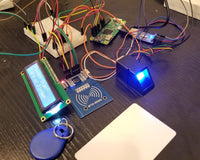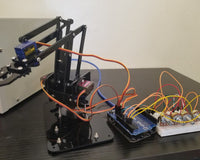

ROADWATCH: A Real-Time Pothole Geolocation, Imaging, and Mobile Monitoring System

01 Overview
ROADWATCH is a portable, low-cost road inspection device that photographs road damage and automatically records where that damage is. A single press of a button — on the device itself or from a phone — takes a JPEG picture with an ESP32-CAM and simultaneously reads the current position from a u-blox NEO-6M GPS receiver. The image is uploaded to Google Drive, and the GPS fix (latitude, longitude, altitude, satellite count and HDOP) is appended as a new row in a Google Sheet together with a clickable "View on Map" link.
Everything is hosted on the ESP32-CAM itself. The board serves its own control web page on port 80 (live stream preview, capture button, capture details panel) and a raw MJPEG video stream on port 81. There is no laptop, no router configuration and no cloud account to pay for — only a 2.4 GHz Wi-Fi hotspot and a free Google account.
The result is a complete pothole geolocation, imaging and monitoring loop: capture → geotag → upload → map. Road maintenance personnel can mount the rig on the dashboard of a vehicle, drive a route, tap the button whenever a pothole or road defect is seen, and end the day with a spreadsheet of geotagged photographs they can open directly in Google Maps.
Project Use Case
ROADWATCH is intended for anyone who has to inventory road damage on a limited budget — municipal engineering offices, barangay road maintenance crews, DPWH field inspectors, student researchers and citizen-reporting groups.
- Road condition surveys. Instead of writing coordinates on paper, an inspector taps the button once per defect and the fix, the photo and the timestamp are stored for them.
- Reporting and prioritisation. The Google Sheet holds one row per pothole with a View on Map link, so repair crews can be routed by severity and location.
- Before-and-after documentation. Because each image is stored in a dated Drive folder with its coordinates, repairs can be verified later against the original report.
- Field work from a phone. The Cammy mobile app turns the setup into a handheld unit, so the camera does not need a laptop or a monitor to be operated on the road.
02 Hardware and Software Components
Gather everything below before you start. This is your checklist — names, models, and versions only. The hardware component names in the table are links to the CreateLabz store so you can check the exact part being used.
Hardware Components
| Component | Description | Qty |
|---|---|---|
| ESP32-CAM ESP32-CAM Development Board-Micro Camera Module OV2640 With WIFI + Bluetooth | The brain of ROADWATCH. An ESP32-S module with a 2 MP OV2640 camera, 4 MB PSRAM and a microSD slot. It captures the JPEG, runs the Wi-Fi stack, hosts the control web page on port 80 plus the MJPEG stream on port 81, and posts each capture to Google. Note: it has no USB socket, so it is programmed through the FT232RL adapter below. | 1 |
| GPS Module, Ublox NEO-6M with External Antenna | u-blox NEO-6M receiver breakout with an external active antenna and a 4-pin header (VCC, GND, TX, RX). It streams NMEA sentences over UART at 9600 baud and supplies latitude, longitude, altitude, satellite count and HDOP — the "where" of every pothole image. | 1 |
| Push Button (Large / Small Tactile Push Button Switch) | Momentary tactile switch wired between GPIO 15 and GND. This is the manual pothole capture trigger: one press queues a photo plus GPS fix without touching a phone or laptop. | 1 |
| LED (RGB LED Diffused 10mm DIP) | The status indicator on GPIO 4 (through a 220 Ω resistor). The red channel is used in this build: it lights continuously while the GPS has no fix, and double-blinks with a 2-second pause once a position fix is acquired. | 1 |
| FT232RL FTDI Basic USB to serial for Arduino pro mini download cable USB TO 232 FT232 USB to TTL module | The programmer and serial-monitor link. Because the ESP32-CAM has no USB port, this FT232RL USB-to-TTL adapter supplies 5 V and connects to GPIO1 (U0T/TX0) and GPIO3 (U0R/RX0) so the sketch can be uploaded and the 115200 baud debug log can be read on a PC. | 1 |
| 220 Ω resistor (supporting part) | Series resistor between GPIO 4 and the LED anode. Required — driving an LED directly from a GPIO pin can damage the pin. | 1 |
| Jumper / Dupont Wires (65 pcs Breadboard Jumper Wire, Round) | A 65-piece set of round breadboard jumper wires (male-to-male, male-to-female and female-to-female) used for the GPS, LED, button and FT232RL connections. | 1 set |
| 5 V regulated supply (supporting part) | A regulated 5 V source rated at about 2 A for stand-alone field use — a USB power bank works well and keeps the camera supply stable. | 1 |
Software Tools
| Software | Description | Version / Details |
|---|---|---|
| Arduino IDE | The development environment used to write, compile and upload the ROADWATCH firmware to the ESP32-CAM. | 2.3.x (1.8.19 also works) |
| ESP32 Arduino Core — "esp32" by Espressif Systems | Board support package that provides WiFi.h, esp_camera.h, esp_http_server.h, HTTPClient.h, WiFiClientSecure.h and the mbedTLS Base64 encoder used by the sketch. | 2.0.x (tested on 2.0.17) — see Section 05 |
| TinyGPSPlus (Mikal Hart) | Library that decodes the NMEA stream from the NEO-6M into usable latitude, longitude, altitude, satellite and HDOP values. | 1.0.3 — Library Manager |
| Cammy Mobile App | The Android field client. Installed on the phone used during the road survey, it opens the ESP32-CAM stream (http://<board-ip>:81/stream) and triggers the same /capture endpoint as the built-in web page — no laptop needed in the vehicle. | APK — see Project Files |
| Google Sheets | The logbook. One row per capture: Timestamp, Latitude, Longitude, Altitude, Satellites, HDOP, Status, Image URL and a clickable View on Map link. | Free Google account |
| Google Drive | Cloud storage for the JPEG files. Every capture is saved as ESP32CAM_yyyyMMdd_HHmmss_STATUS.jpg. | Free Google account |
| Google Apps Script | The cloud backend. A web app (doGet / doPost) that receives the ESP32's JSON POST, decodes the Base64 JPEG, saves it to Drive and appends the row to the sheet. | Browser-based, bound to the sheet |
| Google Chrome / Edge | Used to open the ROADWATCH control page (http://<board-ip>) for the live stream and the capture button, and to edit the Google Sheet. | Any recent version |
Project Files
All required files are printed in full in Section 06 — Code. Copy each one into the location described in Section 05 before proceeding.
Repository: no external repository — the firmware and the cloud backend are published inside Section 06 of this guide.
Cammy mobile app (APK): https://drive.google.com/file/d/1SdZaN0cifz29t4nfuql05s0i78Z6rXG5/view?usp=sharing
| File | Description |
|---|---|
| ROADWATCH.ino | The complete ESP32-CAM firmware: camera init, GPS parsing, status LED, button handling, web server (port 80) + MJPEG stream (port 81), the built-in control page, and the Google Drive / Sheets upload with manual redirect handling. |
| ROADWATCH_APPS_SCRIPT.gs | The Google Apps Script backend: doGet, doPost, handleRequest, saveImageToDrive, the JSON response helper and four built-in test functions. |
| Cammy Mobile App (APK) | Android client for viewing the stream and triggering captures from a phone in the field. |
| PINOUT - ALEX_RONAN.jpg | The wiring reference for the whole build (shown in Section 04). |
03 Application Discussion
Here is what each component does and why it is part of ROADWATCH.
ESP32-CAM (ESP32-S + OV2640)
The ESP32-CAM is the whole system in one board. Its ESP32-S core does work that would normally need three separate devices: it runs the camera, it parses the GPS stream, and it serves web pages over Wi-Fi. Being dual-core matters here — the Arduino loop() keeps reading GPS and watching the button on core 1 while a separate FreeRTOS task (loggerTask) handles the slow Google upload on core 0, so the camera and the web page never freeze while a photo is being sent to the cloud.
The OV2640 sensor is configured for VGA (640×480) JPEG at quality 15 with two frame buffers in PSRAM, which keeps each capture small enough to upload over a mobile hotspot while still being clear enough to identify a pothole and the road surface around it.
Ublox NEO-6M GPS Module
The NEO-6M provides the geotag. It outputs NMEA sentences from its TX pin at 9600 baud, which the ESP32-CAM reads on GPIO 13 through a second hardware UART (HardwareSerial GPS_Serial(1)) — UART0 therefore stays free for uploading and for the serial monitor.
The sketch does not just log raw sentences; it also tracks data quality. Together with latitude and longitude it records altitude, the number of satellites in use and HDOP (horizontal dilution of precision). HDOP is what tells the reader how trustworthy an individual fix is — values below roughly 2 are good enough to identify which lane a pothole is in, while large values warn the surveyor that the measurement should be repeated. Because reception matters, the module is used with its external antenna mounted away from the ESP32-CAM's Wi-Fi antenna to reduce interference.
Status LED
ROADWATCH is operated outdoors, often without a screen in view, so it needs to report GPS status without a serial monitor. The LED on GPIO 4 (through a 220 Ω series resistor) is that indicator: continuously lit = no GPS fix yet, and double-blink followed by a 2-second pause = valid fix. That single behaviour is the difference between a usable geotagged photo and one whose coordinates are zeros, and it is what makes the device usable as a stand-alone field unit.
Push Button
The tactile push button is the human interface. One terminal goes to GPIO 15 and the other to GND, with the internal pull-up enabled (INPUT_PULLUP), so a press reads LOW. The sketch debounces the input with a 50 ms guard and then sets capturePending = true, which the main loop turns into a capture — photo, GPS snapshot and upload — exactly as if the button on the web page had been clicked.
While an upload is in progress the firmware deliberately rejects new presses, so the operator cannot queue a second capture that would overwrite the JPEG still being sent to Google.
FT232RL USB-to-TTL Adapter
Because the AI-Thinker ESP32-CAM has no USB socket and no USB-to-serial chip of its own, the FT232RL is what makes the board programmable. Its TXD connects to GPIO3 (U0R — the ESP32's UART0 RX) and its RXD to GPIO1 (U0T), which gives the PC a normal COM port that the Arduino IDE can upload through and that displays the 115200 baud debug log (Wi-Fi status, IP address, GPS data and upload results).
It also provides the 5 V rail during bench testing. Note that GPIO1 and GPIO3 are UART0, so the sketch never uses them for anything else, and the adapter should be disconnected from the board once ROADWATCH is running in the field.
Cammy Mobile App
Cammy is the field-side mobile client for the project. The ESP32-CAM already publishes a live MJPEG stream on port 81 and a complete control page on port 80, but a surveyor standing on a road shoulder is carrying a phone, not a laptop. Cammy turns that phone into the display and the trigger for ROADWATCH:
- Open the app and point it at the board's address to see the live video feed (http://<board-ip>:81/stream).
- Frame the pothole, then use the app's capture action — it hits the same /capture endpoint as the built-in page, so the firmware performs an identical capture, geotag and Google upload.
- Install it from the APK in Project Files. Since it is not distributed through the Play Store, allow "install from unknown sources" in the phone's browser or file manager when installing it.
Google Drive, Google Sheets and Google Apps Script
These three free Google services form the cloud half of ROADWATCH and replace what would otherwise be a paid IoT platform plus a database.
| Service | Role in ROADWATCH | What the user sees |
|---|---|---|
| Apps Script | Receives the ESP32's JSON POST, validates the fields, decodes the Base64 JPEG and writes the log row. | The published /exec web app URL pasted into the sketch. |
| Google Drive | Stores the JPEG in a dedicated folder, named by timestamp and GPS status. | A folder of image files, each one shareable by link. |
| Google Sheets | The logbook. Adds one row per capture and writes the map link as a real HYPERLINK() formula. | A table of captures whose last column reads "View on Map" and opens Google Maps at that pothole. |
Splitting the work this way also keeps the ESP32 sketch small: the board only has to build one JSON string and POST it. All decoding, file naming, formatting and map-link creation happen in the cloud, where there is no memory limit.
04 Hardware Setup
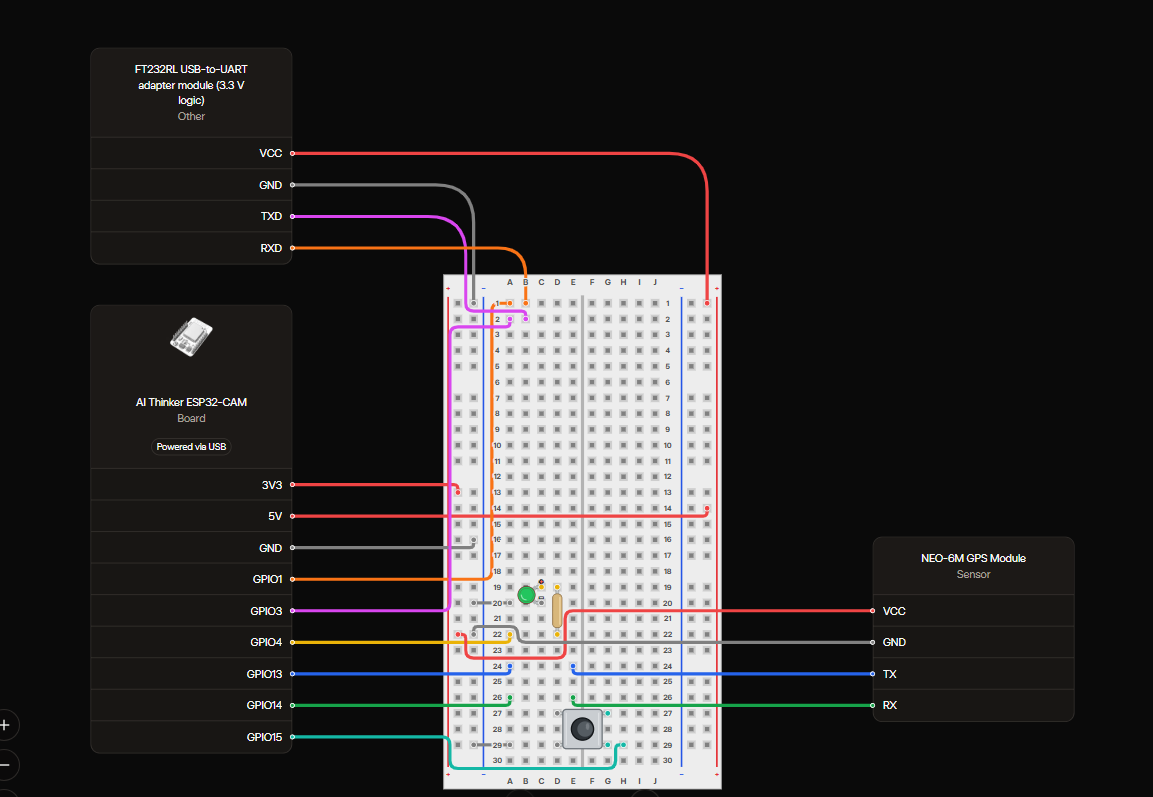
Wire the components to the ESP32-CAM exactly as shown below. All four devices share one 5 V rail and one common ground.
Wiring reference (block diagram)

Schematic diagram
Master Pin-Out
This is the complete connection list for the build. Every connection below is required — nothing in the sketch will work if any of them are swapped. Direction: → from the component pin into the ESP32-CAM, ← from the ESP32-CAM out to the component, ↔ both ways. The ESP32-CAM rows at the end repeat the same links from the board's side, so you can wire either end of the cable.
| Component | Component Pin | Connects To | Purpose / Function |
|---|---|---|---|
| NEO-6M GPS | TX | → GPIO13 | GPS → ESP32-CAM serial data |
| NEO-6M GPS | RX | → GPIO14 | ESP32-CAM → GPS serial data |
| NEO-6M GPS | VCC | → 5V | GPS power |
| NEO-6M GPS | GND | → GND | Common ground |
| FT232RL | VCC | → 5V | FT232RL power |
| FT232RL | GND | → GND | Common ground |
| FT232RL | TXD | → GPIO3 / U0R / RX0 | Serial data from FT232RL to ESP32-CAM |
| FT232RL | RXD | → GPIO1 / U0T / TX0 | Serial data from ESP32-CAM to FT232RL |
| Push Button | One terminal | → GPIO15 | Pothole / event capture trigger |
| Push Button | Other terminal | → GND | Button return / input reference |
| LED | Anode (+) | → GPIO4 → 220 Ω resistor | Status indicator |
| LED | Cathode (−) | → GND | LED return |
| ESP32-CAM | 5V | ← 5V supply | Main power input |
| ESP32-CAM | GND | ← GND | Common ground for all components |
| ESP32-CAM | GPIO13 | ↔ NEO-6M TX | GPS UART RX |
| ESP32-CAM | GPIO14 | ↔ NEO-6M RX | GPS UART TX |
| ESP32-CAM | GPIO15 | ← Push Button | Manual capture trigger |
| ESP32-CAM | GPIO4 | → 220 Ω → LED Anode | LED control |
Connection Groups
GPS Module (NEO-6M) to ESP32-CAM
| NEO-6M Pin | ESP32-CAM Pin | Purpose |
|---|---|---|
| VCC | 5V | GPS power (the breakout has its own 3.3 V regulator) |
| GND | GND | Common ground |
| TX | GPIO13 | NMEA data out of the GPS into UART1 RX (sketch: GPS_RX_PIN 13) |
| RX | GPIO14 | UART1 TX of the ESP32-CAM into the GPS (sketch: GPS_TX_PIN 14) |
FT232RL USB-to-TTL Adapter to ESP32-CAM
| FT232RL Pin | ESP32-CAM Pin | Purpose |
|---|---|---|
| VCC (5 V) | 5V | Powers the board during programming and bench tests |
| GND | GND | Common ground — connect this first |
| TXD | GPIO3 / U0R / RX0 | Serial data from the PC into the ESP32-CAM (upload + commands) |
| RXD | GPIO1 / U0T / TX0 | Serial data from the ESP32-CAM back to the PC (the 115200 baud log) |
Push Button
| Button Terminal | Connects To | Purpose |
|---|---|---|
| Terminal 1 | GPIO15 | Manual pothole / event capture trigger (pressed = LOW) |
| Terminal 2 | GND | Return path / input reference for the internal pull-up |
Status LED
| LED Lead | Connects To | Purpose |
|---|---|---|
| Anode (+), long lead | 220 Ω resistor → GPIO4 | Status indicator output (current limited by the resistor) |
| Cathode (−), short lead | GND | LED return |
Power
| Rail | Connects To | Purpose |
|---|---|---|
| 5V | ESP32-CAM 5V, NEO-6M VCC, FT232RL VCC | Single 5 V supply for the whole system |
| GND | ESP32-CAM GND, NEO-6M GND, button, LED cathode | One common ground for every device |
Assembly Instructions
- Work with the power off. Do not connect the FT232RL to the PC until every jumper is in place.
- Wire the common rails first. Bring the 5 V and GND lines out of the ESP32-CAM to the GPS module and to the FT232RL so that all four devices share one ground.
- Connect the GPS module. NEO-6M TX → GPIO13 and NEO-6M RX → GPIO14. Cross the lines: TX always goes to the other device's RX.
- Fit the LED. Solder or insert the 220 Ω resistor in series between GPIO4 and the LED anode, and take the cathode to GND. If you are using the 10 mm RGB LED, use the red channel's anode/cathode pair and leave the other channels unconnected.
- Fit the push button. One terminal to GPIO15, the other to GND. No external resistor is needed — the sketch enables the ESP32's internal pull-up.
- Connect the FT232RL. TXD → GPIO3, RXD → GPIO1, VCC → 5V, GND → GND. These two signal wires are only needed for programming and for reading the serial log.
- Mount the GPS antenna. Keep the active antenna as far from the ESP32-CAM's Wi-Fi antenna as the wiring allows, ideally on top of the enclosure with a clear view of the sky.
- Connect to the PC and check the board. Plug the FT232RL into a USB port; the blue LED should light and a new COM port should appear in the Arduino IDE. Ensure the FT232RL's VCC jumper (if it has one) is set to 5 V.
- Mount the assembly in the vehicle. Aim the camera forward and slightly down so the road surface directly ahead is in frame, and make the push button reachable from the passenger or driver position without looking away from the road for long.
05 Software Setup
Follow these steps in order. Do not skip any step — the firmware will only compile and upload if the board package, the library and the board settings are all correct.
Step 1 — Install the ESP32 Board Package
- Download and install the Arduino IDE (2.3.x is used in this guide; 1.8.19 also works).
- Open File → Preferences and paste the following URL into Additional boards manager URLs:
url
https://espressif.github.io/arduino-esp32/package_esp32_index.json - Open Tools → Board → Boards Manager, search for esp32 (by Espressif Systems) and install it.
- Install version 2.0.x (2.0.17 was used to build and test ROADWATCH). In the Boards Manager entry, choose the version from the dropdown, then click Install.
Step 2 — Install the Libraries
Install the following library via Tools → Manage Libraries:
- TinyGPSPlus by Mikal Hart — version 1.0.3 (NMEA parser for the NEO-6M).
Everything else the sketch needs already ships with the ESP32 core, so no further installation is required:
- esp_camera.h — OV2640 camera driver
- WiFi.h and WiFiClientSecure.h — Wi-Fi station mode and TLS client
- esp_http_server.h — the two HTTP servers (control page on port 80, stream on port 81)
- HTTPClient.h — HTTPS POST/GET used for the Google Apps Script upload
- mbedtls/base64.h — Base64 encoder that turns the JPEG into text for the JSON body
- soc/soc.h and soc/rtc_cntl_reg.h — used to disable the brown-out detector at start-up
Step 3 — Board Settings
Use exactly these settings in the Arduino IDE. Wrong settings will cause upload failures or a camera that never initialises.
| Setting | Value |
|---|---|
| Board | AI Thinker ESP32-CAM |
| Upload Speed | 115200 |
| CPU Frequency | 240 MHz (WiFi/BT) |
| Flash Frequency | 80 MHz |
| Flash Mode | QIO |
| Partition Scheme | Huge APP (3MB No OTA/1MB SPIFFS) |
| Core Debug Level | None |
| PSRAM | Enabled |
| Port | The COM port created by the FT232RL adapter |
Step 4 — Configure the Sketch
Open ROADWATCH.ino (Section 06) in the Arduino IDE and edit the four items below before uploading.
4.1 Wi-Fi credentials
Replace the two lines near the top of the sketch with the SSID and password of the 2.4 GHz network the device will use in the field. The ESP32-CAM cannot connect to 5 GHz networks.
const char* WIFI_SSID     = "YOUR_WIFI_NAME";
const char* WIFI_PASSWORD = "YOUR_WIFI_PASSWORD";
4.2 Google Apps Script URL
Paste the web app URL you get from Step 7 (it always ends in /exec) into GOOGLE_SCRIPT_URL.
4.3 Optional static IP
By default the board asks your router for an address (DHCP) and prints it to the serial log. If you want a fixed address so that the Cammy app and your browser always point at the same URL, uncomment the #define USE_STATIC_IP line and adjust the four IP addresses to match your network. In the tested build the device was locked to 192.168.1.24.
4.4 Optional camera orientation
Leave the rotation block in initCamera() as it is for now — it is calibrated in Section 08.
Step 5 — Create the Google Backend
5.1 Create the spreadsheet and the Drive folder
- Create a new Google Sheet (for example ROADWATCH Logs) and rename its first tab to Logs. You do not have to type the column headings — the script creates them automatically on the first capture.
- Create a new folder in Google Drive (for example ROADWATCH Images) that will hold the JPEG files.
- Copy the sheet ID from the spreadsheet URL (the long string between /d/ and /edit) and the folder ID from the Drive folder URL. They go into the script in the next step.
5.2 Add and configure the Apps Script
- In the spreadsheet, open Extensions → Apps Script.
- Delete the sample function myFunction() and paste the complete contents of ROADWATCH_APPS_SCRIPT.gs from Section 06.
- Set the three ID values at the very top of the file to your own Sheet, tab and folder:
const SHEET_ID   = "YOUR_SPREADSHEET_ID";
const SHEET_NAME = "Logs";
const FOLDER_ID  = "YOUR_DRIVE_FOLDER_ID";
Save the project (Ctrl + S).
Step 6 — Test the Cloud Script
The Apps Script file includes four self-test functions. Run each one from the Apps Script editor (select it in the function dropdown, then click Run) and check the execution log before you ever power the ESP32-CAM.
| Function | What it checks | Expected result |
|---|---|---|
| testSheetAccess() | That the script can open the spreadsheet and find the "Logs" tab. | Spreadsheet OK: ... and Sheet OK: Logs |
| testFolderAccess() | That the script can see the Drive folder that will hold the images. | Folder OK: ... plus the folder URL |
| testLogger() | A GPS-only write using fixed test coordinates (7.070644, 125.611370). | A JSON response with success: true and a new row in the sheet |
| testImageUpload() | A complete upload using a tiny built-in JPEG, exactly as if the ESP32-CAM had posted one. | success: true, a new row and a JPEG in the Drive folder |
Step 7 — Deploy the Script as a Web App
- In the Apps Script editor click Deploy → New deployment.
- Click the gear icon and choose Web app.
- Set Execute as: Me and Who has access: Anyone. This is required — the ESP32 is not signed in to a Google account, so the endpoint must be reachable anonymously.
- Click Deploy, authorise again if asked, and copy the Web app URL (ends in /exec).
url
https://script.google.com/macros/s/XXXXXXXXXXXXXXXX/exec - Paste that URL into GOOGLE_SCRIPT_URL in the sketch (Step 4.2).
- Test the endpoint from a browser by opening the URL with test parameters appended — for example:
A JSON reply containing "success":true means the cloud half is finished.url
https://script.google.com/macros/s/XXXXXXXX/exec?valid=true&latitude=7.070644&longitude=125.611370&altitude=41.5&satellites=6&hdop=2.54&status=GPS%20FIX
Step 8 — Upload the Firmware
- With the FT232RL connected (TXD → GPIO3, RXD → GPIO1, 5V → 5V, GND → GND), select the correct COM port under Tools → Port.
- Put the board in programming mode: pull GPIO0 to GND (or hold the on-board IO0 button) and tap RESET while GPIO0 is held low.
- Click Upload in the Arduino IDE and wait for "Done uploading".
- Remove the GPIO0–GND link and press RESET once more so the sketch starts normally.
- Open Tools → Serial Monitor and set the baud rate to 115200. You should see the banner, the Wi-Fi status, the assigned IP address and the rolling GPS log:
serial
============================== ESP32-CAM + NEO-6M + Button ============================== Camera OK. PSRAM: yes WiFi OK. IP: http://192.168.1.24 Web server started. Control (port 80): / /ip /capture /capture.jpg /capture-info /gps Cloud: JPEG -> Google Drive, GPS -> Google Sheets Stream (port 81): /stream - Open http://<board-ip> in a browser on the same Wi-Fi network. The control page, live stream and Capture Image button should appear.
Step 9 — Install and Use the Cammy Mobile App
- Download the Cammy APK from the link in Project Files (Section 02) directly on the Android phone you will use in the field.
- Install it. Because the file does not come from the Play Store, enable Install unknown apps / Install from unknown sources for the browser or file manager you are using, then confirm the installation.
- Join the phone to the same Wi-Fi network as the ESP32-CAM (in the field this is normally the vehicle's mobile hotspot, or the phone's own hotspot if the board is configured for it).
- Open the app and enter the board's address — the IP printed on the serial monitor, for example 192.168.1.24. If the app asks for a stream URL, use http://192.168.1.24:81/stream.
- Confirm that the live video appears, frame a pothole and use the app's capture action. If you want to keep the phone as a pure viewer, use the physical push button on GPIO 15 instead — both paths end in the same firmware capture routine.
06 Code
There are two files in this project: the ESP32-CAM firmware and the Google Apps Script cloud backend. Copy each one into the correct location as described in the Software Setup section, then read Section 07 to understand what each part does.
ROADWATCH.ino — ESP32-CAM Firmware
Save this file as ROADWATCH.ino, then open it in the Arduino IDE with the board settings from Section 05.
#include "esp_camera.h"
#include <WiFi.h>
#include "esp_http_server.h"
#include "soc/soc.h"
#include "soc/rtc_cntl_reg.h"
#include <TinyGPSPlus.h>
#include <HTTPClient.h>
#include <WiFiClientSecure.h>
#include <mbedtls/base64.h>

// ======================= WIFI CREDENTIALS =======================
const char* WIFI_SSID     = "PLDTHOMEFIBR42250";
const char* WIFI_PASSWORD = "PLDTWIFIxw232";

// ======================= OPTIONAL STATIC IP =====================
// Uncomment to lock the IP at 192.168.1.24
// #define USE_STATIC_IP
IPAddress local_IP(192, 168, 1, 24);
IPAddress gateway  (192, 168, 1, 1);
IPAddress subnet   (255, 255, 255, 0);
IPAddress dns1     (8, 8, 8, 8);
IPAddress dns2     (8, 8, 4, 4);

// ======================= CAMERA PINS (AI-Thinker) ===============
#define PWDN_GPIO_NUM     32
#define RESET_GPIO_NUM    -1
#define XCLK_GPIO_NUM      0
#define SIOD_GPIO_NUM     26
#define SIOC_GPIO_NUM     27

#define Y9_GPIO_NUM       35
#define Y8_GPIO_NUM       34
#define Y7_GPIO_NUM       39
#define Y6_GPIO_NUM       36
#define Y5_GPIO_NUM       21
#define Y4_GPIO_NUM       19
#define Y3_GPIO_NUM       18
#define Y2_GPIO_NUM        5

#define VSYNC_GPIO_NUM    25
#define HREF_GPIO_NUM     23
#define PCLK_GPIO_NUM     22

// ======================= STATUS LED =============================
#define STATUS_LED_PIN     4

// ======================= CAPTURE BUTTON =========================
#define CAPTURE_BUTTON_PIN 15

// ======================= GPS PINS ===============================
#define GPS_RX_PIN        13
#define GPS_TX_PIN        14
#define GPS_BAUD          9600

// ======================= GOOGLE SHEETS ==========================
const char* GOOGLE_SCRIPT_URL =
  "https://script.google.com/macros/s/AKfycbw2ruhCAJ8C4HWvXdK0_SF8pC0svf7E4tENK_tQeg6Lf5TFsCJtrysaxIRXXhiJBEeH/exec";

// ======================= OBJECTS ================================
TinyGPSPlus gps;
HardwareSerial GPS_Serial(1);

httpd_handle_t camera_httpd = NULL;   // port 80  - UI / capture / GPS
httpd_handle_t stream_httpd = NULL;   // port 81  - MJPEG stream only

SemaphoreHandle_t captureMutex;
SemaphoreHandle_t cameraMutex;
volatile bool uploadBusy = false;

// ======================= SHARED STATE ===========================
volatile bool     capturePending    = false;
volatile bool     lastCaptureValid  = false;
volatile double   lastCaptureLat    = 0.0;
volatile double   lastCaptureLng    = 0.0;
volatile double   lastCaptureAlt    = 0.0;
volatile uint32_t lastCaptureSat    = 0;
volatile double   lastCaptureHdop   = 0.0;
String            lastCaptureStatus = "NO CAPTURE YET";
String            lastDriveUrl      = "";

uint8_t*          lastJpegBuf       = nullptr;
size_t            lastJpegLen       = 0;

volatile bool     logPending        = false;
bool              logValid          = false;
double            logLat = 0, logLng = 0, logAlt = 0, logHdop = 0;
uint32_t          logSat = 0;

// ======================= MJPEG BOUNDARY =========================
#define PART_BOUNDARY "123456789000000000000987654321"
static const char* STREAM_CONTENT_TYPE =
  "multipart/x-mixed-replace;boundary=" PART_BOUNDARY;
static const char* STREAM_BOUNDARY = "\r\n--" PART_BOUNDARY "\r\n";
static const char* STREAM_PART =
  "Content-Type: image/jpeg\r\nContent-Length: %u\r\n\r\n";

// ======================= GPS LED ================================
void updateGPSLED() {
  static unsigned long lastBlink = 0;
  static int  blinkCount = 0;
  static bool ledState = false;
  static bool pauseAfterBlink = false;

  if (!gps.location.isValid()) {
    digitalWrite(STATUS_LED_PIN, HIGH);
    blinkCount = 0; ledState = true; pauseAfterBlink = false;
    return;
  }
  if (pauseAfterBlink) {
    if (millis() - lastBlink >= 2000) {
      pauseAfterBlink = false; blinkCount = 0; lastBlink = millis();
    }
    return;
  }
  if (millis() - lastBlink >= 250) {
    lastBlink = millis();
    ledState = !ledState;
    digitalWrite(STATUS_LED_PIN, ledState ? HIGH : LOW);
    if (!ledState) {
      blinkCount++;
      if (blinkCount >= 2) {
        digitalWrite(STATUS_LED_PIN, LOW);
        pauseAfterBlink = true;
      }
    }
  }
}

// ======================= GOOGLE DRIVE + SHEETS UPLOAD ============
// The Apps Script receives one JSON POST containing:
//   - JPEG image as Base64
//   - GPS coordinates / metadata
// It then saves the JPEG to Google Drive and writes the capture
// information + Drive URL into the Google Sheet.
//
// IMPORTANT: Google Apps Script web apps don't return the response
// directly. They execute the script, then send a 302 redirect to a
// script.googleusercontent.com URL holding the real result. The
// ESP32 Arduino core's HTTPClient has a known bug where its
// automatic redirect-following mangles that second request (Google
// then rejects it with a generic "400 Bad Request" HTML error page
// that has nothing to do with your Apps Script code). So here we
// disable automatic redirects and follow the Location header
// ourselves with a clean, fresh GET request.
// ================================================================
bool uploadCaptureToGoogleDrive(bool valid, double latitude, double longitude,
                                double altitude, uint32_t satellites, double hdop) {
  if (WiFi.status() != WL_CONNECTED) {
    Serial.println("[UPLOAD] WiFi is not connected.");
    return false;
  }

  // Take a stable snapshot of the JPEG pointer/length. The capture task
  // refuses to replace the JPEG while an upload is in progress.
  xSemaphoreTake(captureMutex, portMAX_DELAY);
  if (!lastJpegBuf || lastJpegLen == 0) {
    xSemaphoreGive(captureMutex);
    Serial.println("[UPLOAD] No JPEG available.");
    return false;
  }
  uint8_t* jpeg = lastJpegBuf;
  size_t jpegLen = lastJpegLen;
  xSemaphoreGive(captureMutex);

  const size_t base64Len = ((jpegLen + 2) / 3) * 4;
  const size_t prefixCapacity = 600;
  const size_t bodyCapacity = base64Len + prefixCapacity + 4;

  char* body = (char*)ps_malloc(bodyCapacity + 1);
  if (!body) {
    Serial.println("[UPLOAD] PSRAM allocation FAILED.");
    return false;
  }

  int prefixLen = snprintf(
    body, bodyCapacity + 1,
    "{\"action\":\"upload\",\"valid\":%s,\"latitude\":%.6f,\"longitude\":%.6f,\"altitude\":%.2f,\"satellites\":%lu,\"hdop\":%.2f,\"image\":\"",
    valid ? "true" : "false",
    valid ? latitude : 0.0,
    valid ? longitude : 0.0,
    valid ? altitude : 0.0,
    (unsigned long)satellites,
    valid ? hdop : 0.0
  );

  if (prefixLen <= 0) {
    free(body);
    Serial.println("[UPLOAD] JSON prefix FAILED.");
    return false;
  }

  size_t encodedLen = 0;
  int b64 = mbedtls_base64_encode(
    (unsigned char*)(body + prefixLen), bodyCapacity - prefixLen,
    &encodedLen, jpeg, jpegLen
  );

  if (b64 != 0) {
    free(body);
    Serial.print("[UPLOAD] Base64 encoding FAILED: ");
    Serial.println(b64);
    return false;
  }

  size_t totalLen = (size_t)prefixLen + encodedLen;
  body[totalLen++] = '"';
  body[totalLen++] = '}';
  body[totalLen] = '\0';

  Serial.println();
  Serial.println("========== GOOGLE UPLOAD ==========");
  Serial.print("JPEG bytes: "); Serial.println(jpegLen);
  Serial.print("Base64 bytes: "); Serial.println(encodedLen);
  Serial.print("POST bytes: "); Serial.println(totalLen);

  WiFiClientSecure client;
  client.setInsecure();

  HTTPClient http;
  http.setConnectTimeout(30000);
  http.setTimeout(60000);
  // Do NOT auto-follow redirects here — see comment above the function.
  http.setFollowRedirects(HTTPC_DISABLE_FOLLOW_REDIRECTS);

  if (!http.begin(client, GOOGLE_SCRIPT_URL)) {
    free(body);
    Serial.println("[UPLOAD] HTTP begin FAILED.");
    return false;
  }

  http.addHeader("Content-Type", "application/json");
  http.addHeader("Accept", "application/json");
  http.addHeader("Connection", "close");

  Serial.println("[UPLOAD] Sending POST to Google Apps Script...");
  int code = http.POST((uint8_t*)body, totalLen);

  // We're done with the request body now regardless of outcome.
  free(body);

  String response;

  if (code == 301 || code == 302 || code == 303 || code == 307) {
    // Manually follow the redirect Google sends us with a fresh,
    // clean GET request — this is the part the built-in redirect
    // handling gets wrong.
    String location = http.header("Location");
    http.end();

    Serial.print("[UPLOAD] Redirected (");
    Serial.print(code);
    Serial.print(") to: ");
    Serial.println(location);

    if (location.length() == 0) {
      Serial.println("[UPLOAD] No Location header found on redirect.");
      Serial.println("===================================");
      return false;
    }

    WiFiClientSecure client2;
    client2.setInsecure();

    HTTPClient http2;
    http2.setConnectTimeout(30000);
    http2.setTimeout(60000);

    if (!http2.begin(client2, location)) {
      Serial.println("[UPLOAD] Redirect HTTP begin FAILED.");
      Serial.println("===================================");
      return false;
    }

    int code2 = http2.GET();
    Serial.print("[UPLOAD] Redirect HTTP code: ");
    Serial.println(code2);

    if (code2 > 0) {
      response = http2.getString();
      code = code2;
    } else {
      Serial.print("[UPLOAD] Redirect HTTP error: ");
      Serial.println(http2.errorToString(code2));
      http2.end();
      Serial.println("===================================");
      return false;
    }

    http2.end();

  } else if (code > 0) {
    response = http.getString();
    http.end();
  } else {
    Serial.print("[UPLOAD] HTTP error: ");
    Serial.println(http.errorToString(code));
    http.end();
    Serial.println("===================================");
    return false;
  }

  Serial.print("[UPLOAD] HTTP code: ");
  Serial.println(code);
  Serial.print("[UPLOAD] Response: ");
  Serial.println(response);

  bool ok = false;
  if (code >= 200 && code < 300 &&
      (response.indexOf("\"success\":true") >= 0 ||
       response.indexOf("\"success\": true") >= 0)) {
    ok = true;

    int u = response.indexOf("\"fileUrl\"");
    if (u >= 0) {
      u = response.indexOf(':', u);
      if (u >= 0) {
        u++;
        while (u < (int)response.length() && response[u] == ' ') u++;
        if (u < (int)response.length() && response[u] == '"') {
          u++;
          int e = response.indexOf('"', u);
          if (e > u) {
            xSemaphoreTake(captureMutex, portMAX_DELAY);
            lastDriveUrl = response.substring(u, e);
            xSemaphoreGive(captureMutex);
          }
        }
      }
    }
  }

  Serial.println(ok ? "[UPLOAD] SUCCESS: Drive + Sheets" : "[UPLOAD] FAILED");
  Serial.println("===================================");
  return ok;
}

// ======================= BACKGROUND UPLOAD TASK ================
void loggerTask(void* param) {
  for (;;) {
    if (logPending && !uploadBusy) {
      logPending = false;
      uploadBusy = true;

      bool ok = uploadCaptureToGoogleDrive(
        logValid, logLat, logLng, logAlt, logSat, logHdop);

      xSemaphoreTake(captureMutex, portMAX_DELAY);
      if (ok) {
        lastCaptureStatus = logValid
          ? "GPS FIX - IMAGE SAVED"
          : "NO GPS FIX - IMAGE SAVED";
      } else {
        lastCaptureStatus = logValid
          ? "GPS FIX - IMAGE UPLOAD FAILED"
          : "NO GPS FIX - IMAGE UPLOAD FAILED";
      }
      xSemaphoreGive(captureMutex);
      uploadBusy = false;
    }
    vTaskDelay(50 / portTICK_PERIOD_MS);
  }
}

// ======================= CAPTURE CORE ===========================
bool performCapture() {
  if (uploadBusy || logPending) {
    Serial.println(">>> Capture ignored: previous upload is still in progress.");
    return false;
  }

  Serial.println(">>> Starting camera capture...");

  // Protect the camera from the streaming task. The mutex is released
  // immediately after getting the frame so the network stream can continue.
  if (xSemaphoreTake(cameraMutex, pdMS_TO_TICKS(5000)) != pdTRUE) {
    Serial.println(">>> Camera busy: capture timed out.");
    return false;
  }

  camera_fb_t *fb = esp_camera_fb_get();
  if (!fb) {
    xSemaphoreGive(cameraMutex);
    Serial.println(">>> Camera capture FAILED (fb_get returned NULL).");
    return false;
  }

  size_t frameLen = fb->len;
  uint8_t* newBuf = (uint8_t*)ps_malloc(frameLen);
  if (newBuf) memcpy(newBuf, fb->buf, frameLen);
  esp_camera_fb_return(fb);
  xSemaphoreGive(cameraMutex);

  if (!newBuf) {
    Serial.println(">>> JPEG PSRAM allocation FAILED.");
    return false;
  }

  bool valid = gps.location.isValid();
  double lat = valid ? gps.location.lat() : 0.0;
  double lng = valid ? gps.location.lng() : 0.0;
  double alt = (valid && gps.altitude.isValid()) ? gps.altitude.meters() : 0.0;
  double hdop = (valid && gps.hdop.isValid()) ? gps.hdop.hdop() : 0.0;
  uint32_t sat = gps.satellites.isValid() ? gps.satellites.value() : 0;

  xSemaphoreTake(captureMutex, portMAX_DELAY);
  if (lastJpegBuf) free(lastJpegBuf);
  lastJpegBuf = newBuf;
  lastJpegLen = frameLen;
  lastCaptureValid = valid;
  lastCaptureLat = lat;
  lastCaptureLng = lng;
  lastCaptureAlt = alt;
  lastCaptureSat = sat;
  lastCaptureHdop = hdop;
  lastCaptureStatus = "UPLOAD QUEUED";
  lastDriveUrl = "";
  xSemaphoreGive(captureMutex);

  logValid = valid;
  logLat = lat;
  logLng = lng;
  logAlt = alt;
  logSat = sat;
  logHdop = hdop;
  logPending = true;

  Serial.println(">>> Capture done.");
  Serial.print(">>> JPEG bytes: "); Serial.println(frameLen);
  Serial.print(">>> GPS: "); Serial.println(valid ? "FIX" : "NO FIX");
  Serial.println(">>> Google Drive + Google Sheets upload queued.");
  return true;
}

// ======================= ROOT PAGE (HTML/CSS/JS) ================
static const char INDEX_HTML[] = R"HTML(
<!DOCTYPE html>
<html lang="en">
<head>
<meta charset="utf-8">
<title>ESP32-CAM GPS Live</title>
<meta name="viewport" content="width=device-width, initial-scale=1, maximum-scale=1">
<style>
  :root{
    --bg1:#0a0e17; --bg2:#111827; --card:rgba(255,255,255,.05);
    --card-border:rgba(255,255,255,.09); --text:#e7eaf2; --dim:#8b93a7;
    --accent1:#22d3ee; --accent2:#a78bfa; --good:#34d399; --bad:#f87171;
    --radius:18px;
  }
  *{box-sizing:border-box;}
  body{
    margin:0; min-height:100vh; color:var(--text);
    font-family:-apple-system,BlinkMacSystemFont,"Segoe UI",Roboto,Helvetica,Arial,sans-serif;
    background:
      radial-gradient(circle at 15% -10%, rgba(34,211,238,.14), transparent 40%),
      radial-gradient(circle at 100% 0%, rgba(167,139,250,.14), transparent 45%),
      linear-gradient(160deg,var(--bg1) 0%,var(--bg2) 55%,var(--bg1) 100%);
    padding:18px 14px 40px;
  }
  .wrap{max-width:640px; margin:0 auto;}
  .topbar{display:flex; align-items:center; justify-content:space-between;
    gap:10px; margin-bottom:16px; flex-wrap:wrap;}
  .brand{display:flex; align-items:center; gap:10px;}
  .brand svg{width:26px; height:26px; flex:none;}
  .brand h1{font-size:17px; margin:0; font-weight:700; letter-spacing:.2px;}
  .brand span{display:block; font-size:11px; color:var(--dim); font-weight:500;}
  .pill{display:flex; align-items:center; gap:7px;
    background:var(--card); border:1px solid var(--card-border);
    padding:7px 12px; border-radius:999px; font-size:12.5px; color:var(--dim);
    backdrop-filter:blur(6px);}
  .dot{width:8px; height:8px; border-radius:50%; background:var(--bad); flex:none;}
  .dot.on{background:var(--good); box-shadow:0 0 0 0 rgba(52,211,153,.6);
    animation:pulse 1.6s infinite;}
  @keyframes pulse{
    0%{box-shadow:0 0 0 0 rgba(52,211,153,.55);}
    70%{box-shadow:0 0 0 7px rgba(52,211,153,0);}
    100%{box-shadow:0 0 0 0 rgba(52,211,153,0);}
  }
  .card{background:var(--card); border:1px solid var(--card-border);
    border-radius:var(--radius); backdrop-filter:blur(6px);}
  .stream-card{position:relative; overflow:hidden; padding:0;}
  .stream-ratio{position:relative; width:100%; aspect-ratio:4/3; background:#000;}
  .stream-ratio img{position:absolute; inset:0; width:100%; height:100%;
    object-fit:cover; display:block;}
  .live-badge{position:absolute; top:10px; left:10px; z-index:2;
    display:flex; align-items:center; gap:6px;
    background:rgba(0,0,0,.55); border:1px solid rgba(255,255,255,.12);
    padding:5px 10px 5px 8px; border-radius:999px; font-size:11.5px; font-weight:700;
    letter-spacing:.4px; backdrop-filter:blur(4px);}
  .live-dot{width:7px; height:7px; border-radius:50%; background:var(--bad);}
  .live-dot.on{background:#ff3b3b; animation:pulse 1.3s infinite;}
  .stream-overlay{position:absolute; inset:0; z-index:1; display:flex; align-items:center;
    justify-content:center; flex-direction:column; gap:10px; text-align:center;
    padding:20px; color:var(--dim); font-size:13.5px; transition:opacity .3s;}
  .spinner{width:26px; height:26px; border-radius:50%;
    border:3px solid rgba(255,255,255,.15); border-top-color:var(--accent1);
    animation:spin 0.8s linear infinite;}
  @keyframes spin{to{transform:rotate(360deg);}}
  .controls{display:flex; flex-direction:column; align-items:center;
    gap:10px; margin:20px 0 6px;}
  .capture-btn{display:flex; align-items:center; gap:9px; border:none; cursor:pointer;
    color:#0a0e17; font-weight:800; font-size:15.5px; letter-spacing:.2px;
    padding:15px 30px; border-radius:999px;
    background:linear-gradient(135deg,var(--accent1),var(--accent2));
    box-shadow:0 10px 26px -10px rgba(34,211,238,.55);
    transition:transform .15s ease, box-shadow .15s ease, filter .15s ease;}
  .capture-btn:active{transform:scale(.97);}
  .capture-btn:hover{filter:brightness(1.06);}
  .capture-btn:disabled{cursor:wait; filter:grayscale(.35) brightness(.8);
    box-shadow:none; transform:none;}
  .capture-btn svg{width:19px; height:19px;}
  .btn-spinner{width:16px; height:16px; border-radius:50%;
    border:2.5px solid rgba(10,14,23,.25); border-top-color:#0a0e17;
    animation:spin .7s linear infinite;}
  .status-line{font-size:12.5px; color:var(--dim); min-height:16px; text-align:center;}
  .hint{display:flex; align-items:center; justify-content:center; gap:6px;
    font-size:11.5px; color:var(--dim); opacity:.75; margin-top:2px;}
  .gps-card{margin-top:16px; padding:16px 16px 18px; opacity:0; transform:translateY(-8px);
    max-height:0; overflow:hidden; transition:opacity .35s ease, transform .35s ease;}
  .gps-card.show{opacity:1; transform:translateY(0); max-height:600px;}
  .gps-head{display:flex; align-items:center; justify-content:space-between; margin-bottom:12px;}
  .gps-head h2{font-size:14px; margin:0; font-weight:700;}
  .badge{font-size:11px; font-weight:800; letter-spacing:.3px; padding:4px 10px;
    border-radius:999px; display:flex; align-items:center; gap:5px;}
  .badge.good{color:var(--good); background:rgba(52,211,153,.12);
    border:1px solid rgba(52,211,153,.3);}
  .badge.bad{color:var(--bad); background:rgba(248,113,113,.12);
    border:1px solid rgba(248,113,113,.3);}
  .stat-grid{display:grid; grid-template-columns:1fr 1fr; gap:8px;}
  .stat{background:rgba(255,255,255,.035); border:1px solid var(--card-border);
    border-radius:12px; padding:10px 12px;}
  .stat.wide{grid-column:1 / -1;}
  .stat .label{font-size:10.5px; color:var(--dim); text-transform:uppercase;
    letter-spacing:.5px; font-weight:700; margin-bottom:3px;}
  .stat .value{font-size:14.5px; font-weight:700; word-break:break-all;}
  .maps-btn{margin-top:12px; width:100%; display:flex; align-items:center;
    justify-content:center; gap:8px; text-decoration:none; padding:12px;
    border-radius:12px; font-weight:700; font-size:13.5px; color:var(--text);
    background:rgba(255,255,255,.04); border:1px solid var(--card-border);
    transition:background .15s ease;}
  .maps-btn:hover{background:rgba(255,255,255,.08);}
  .maps-btn svg{width:16px; height:16px;}
  .log-line{font-size:12px; color:var(--dim); margin-top:10px; text-align:center;}
  .log-line b{color:var(--text);}
</style>
</head>
<body>
<div class="wrap">
  <div class="topbar">
    <div class="brand">
      <svg viewBox="0 0 24 24" fill="none" stroke="url(#g1)" stroke-width="1.8">
        <defs><linearGradient id="g1" x1="0" y1="0" x2="1" y2="1">
          <stop offset="0" stop-color="#22d3ee"/><stop offset="1" stop-color="#a78bfa"/>
        </linearGradient></defs>
        <path d="M4 8h2l1.5-2h9L18 8h2a2 2 0 0 1 2 2v8a2 2 0 0 1-2 2H4a2 2 0 0 1-2-2v-8a2 2 0 0 1 2-2z"/>
        <circle cx="12" cy="13" r="3.5"/>
      </svg>
      <div><h1>ESP32-CAM GPS</h1><span>Live field camera</span></div>
    </div>
    <div class="pill"><span class="dot" id="wifiDot"></span><span id="ip">connecting...</span></div>
  </div>

  <div class="card stream-card">
    <div class="stream-ratio">
      <img id="stream" alt="live stream">
      <div class="stream-overlay" id="streamOverlay">
        <div class="spinner"></div>
        <div>Connecting to camera stream…</div>
      </div>
    </div>
    <div class="live-badge"><span class="live-dot" id="liveDot"></span><span id="liveText">OFFLINE</span></div>
  </div>

  <div class="controls">
    <button id="captureBtn" class="capture-btn" onclick="captureImage()">
      <svg id="camIcon" viewBox="0 0 24 24" fill="none" stroke="#0a0e17" stroke-width="2">
        <path d="M4 8h2l1.5-2h9L18 8h2a2 2 0 0 1 2 2v8a2 2 0 0 1-2 2H4a2 2 0 0 1-2-2v-8a2 2 0 0 1 2-2z"/>
        <circle cx="12" cy="13" r="3.5"/>
      </svg>
      <span id="btnLabel">Capture Image</span>
    </button>
    <div class="status-line" id="ts">Ready — tap to capture, or use the physical button.</div>
    <div class="hint">
      <svg width="13" height="13" viewBox="0 0 24 24" fill="none" stroke="#8b93a7" stroke-width="2">
        <circle cx="12" cy="12" r="9"/><path d="M12 8v4l3 2"/>
      </svg>
      Physical button on GPIO 15 also triggers capture
    </div>
  </div>

  <div class="card gps-card" id="gpsBox">
    <div class="gps-head">
      <h2>Capture details</h2>
      <span class="badge" id="fixBadge"></span>
    </div>
    <div class="stat-grid" id="statGrid"></div>
    <a class="maps-btn" id="mapsLink" target="_blank" style="display:none;">
      <svg viewBox="0 0 24 24" fill="none" stroke="currentColor" stroke-width="2">
        <path d="M12 21s-7-6.2-7-11a7 7 0 0 1 14 0c0 4.8-7 11-7 11z"/><circle cx="12" cy="10" r="2.5"/>
      </svg>
      Open in Google Maps
    </a>
    <div class="log-line" id="logLine"></div>
  </div>
</div>

<script>
  const streamImg   = document.getElementById('stream');
  const overlay     = document.getElementById('streamOverlay');
  const liveDot     = document.getElementById('liveDot');
  const liveText    = document.getElementById('liveText');
  const wifiDot     = document.getElementById('wifiDot');
  const ipEl        = document.getElementById('ip');
  const captureBtn  = document.getElementById('captureBtn');
  const camIcon     = document.getElementById('camIcon');
  const btnLabel    = document.getElementById('btnLabel');
  const ts          = document.getElementById('ts');
  const gpsBox      = document.getElementById('gpsBox');
  const fixBadge    = document.getElementById('fixBadge');
  const statGrid    = document.getElementById('statGrid');
  const mapsLink    = document.getElementById('mapsLink');
  const logLine     = document.getElementById('logLine');

  function streamUrl(){
    return 'http://' + location.hostname + ':81/stream?ts=' + Date.now();
  }
  function startStream(){
    overlay.style.opacity = '1';
    streamImg.src = streamUrl();
  }
  streamImg.addEventListener('load', () => {
    overlay.style.opacity = '0';
    liveDot.classList.add('on');
    liveText.textContent = 'LIVE';
    wifiDot.classList.add('on');
  });
  streamImg.addEventListener('error', () => {
    liveDot.classList.remove('on');
    liveText.textContent = 'OFFLINE';
    overlay.innerHTML = '<div class="spinner"></div><div>Stream dropped — reconnecting…</div>';
    overlay.style.opacity = '1';
    setTimeout(startStream, 1500);
  });
  startStream();

  fetch('/ip').then(r => r.text()).then(t => { ipEl.textContent = t; wifiDot.classList.add('on'); })
              .catch(() => { ipEl.textContent = 'offline'; });

  const spinnerSVG = '<div class="btn-spinner"></div>';

  function statTile(label, value, wide){
    return '<div class="stat' + (wide ? ' wide' : '') + '"><div class="label">' + label +
           '</div><div class="value">' + value + '</div></div>';
  }

  async function captureImage(){
    captureBtn.disabled = true;
    btnLabel.textContent = 'Capturing…';
    document.getElementById('camIcon').style.display = 'none';
    captureBtn.insertAdjacentHTML('afterbegin', spinnerSVG);
    ts.textContent = 'Taking photo and reading GPS…';
    gpsBox.classList.remove('show');

    try{
      const resp = await fetch('/capture?t=' + Date.now());
      if(!resp.ok) throw new Error('Capture failed (' + resp.status + ')');
      ts.textContent = 'Captured at ' + new Date().toLocaleTimeString() + ' — logging…';

      let data = null;
      for(let i = 0; i < 40; i++){
        const g = await fetch('/capture-info?t=' + Date.now());
        data = await g.json();
        if(data.status.indexOf('IMAGE SAVED') >= 0 || data.status.indexOf('FAILED') >= 0) break;
        await new Promise(r => setTimeout(r, 500));
      }

      statGrid.innerHTML = '';
      if(data.valid){
        fixBadge.className = 'badge good';
        fixBadge.textContent = 'GPS FIX';
        statGrid.innerHTML =
          statTile('Latitude', data.lat) +
          statTile('Longitude', data.lng) +
          statTile('Altitude', data.alt + ' m') +
          statTile('Satellites', data.sat) +
          statTile('HDOP', data.hdop, true);
        mapsLink.href = 'https://www.google.com/maps?q=' + data.lat + ',' + data.lng;
        mapsLink.style.display = 'flex';
        ts.textContent = 'Capture complete.';
      } else {
        fixBadge.className = 'badge bad';
        fixBadge.textContent = 'NO FIX';
        statGrid.innerHTML = statTile('Satellites visible', data.sat, true);
        mapsLink.style.display = 'none';
        ts.textContent = 'Captured — no GPS fix at the time.';
      }
      logLine.innerHTML = 'Cloud storage: <b>' + data.status + '</b>' +
          (data.driveUrl ? ' — <a href="' + data.driveUrl + '" target="_blank" style="color:inherit">Open Drive image</a>' : '');
      gpsBox.classList.add('show');
    }catch(err){
      ts.textContent = 'Error: ' + err.message;
      fixBadge.className = 'badge bad';
      fixBadge.textContent = 'ERROR';
      statGrid.innerHTML = '';
      mapsLink.style.display = 'none';
      logLine.textContent = '';
      gpsBox.classList.add('show');
    }finally{
      captureBtn.disabled = false;
      btnLabel.textContent = 'Capture Image';
      const sp = captureBtn.querySelector('.btn-spinner');
      if(sp) sp.remove();
      document.getElementById('camIcon').style.display = '';
    }
  }
</script>
</body>
</html>
)HTML";

// ======================= HTTPD HANDLERS (port 80) ===============
static esp_err_t root_handler(httpd_req_t *req) {
  httpd_resp_set_type(req, "text/html");
  return httpd_resp_send(req, INDEX_HTML, strlen(INDEX_HTML));
}

static esp_err_t favicon_handler(httpd_req_t *req) {
  httpd_resp_set_status(req, "204 No Content");
  return httpd_resp_send(req, NULL, 0);
}

static esp_err_t ip_handler(httpd_req_t *req) {
  String ip = WiFi.localIP().toString();
  httpd_resp_set_type(req, "text/plain");
  return httpd_resp_send(req, ip.c_str(), ip.length());
}

static esp_err_t capture_handler(httpd_req_t *req) {
  bool ok = performCapture();

  xSemaphoreTake(captureMutex, portMAX_DELAY);
  bool haveBuf = ok && lastJpegBuf && lastJpegLen > 0;
  esp_err_t res;
  if (!haveBuf) {
    xSemaphoreGive(captureMutex);
    httpd_resp_send_err(req, HTTPD_500_INTERNAL_SERVER_ERROR, "Capture failed");
    return ESP_FAIL;
  }
  httpd_resp_set_type(req, "image/jpeg");
  httpd_resp_set_hdr(req, "Content-Disposition", "inline; filename=capture.jpg");
  httpd_resp_set_hdr(req, "Cache-Control", "no-store");
  res = httpd_resp_send(req, (const char*)lastJpegBuf, lastJpegLen);
  xSemaphoreGive(captureMutex);
  return res;
}

static esp_err_t capture_jpg_handler(httpd_req_t *req) {
  xSemaphoreTake(captureMutex, portMAX_DELAY);
  if (!lastJpegBuf || lastJpegLen == 0) {
    xSemaphoreGive(captureMutex);
    httpd_resp_send_err(req, HTTPD_404_NOT_FOUND, "No capture yet");
    return ESP_FAIL;
  }
  httpd_resp_set_type(req, "image/jpeg");
  httpd_resp_set_hdr(req, "Cache-Control", "no-store");
  esp_err_t res = httpd_resp_send(req, (const char*)lastJpegBuf, lastJpegLen);
  xSemaphoreGive(captureMutex);
  return res;
}

static esp_err_t capture_info_handler(httpd_req_t *req) {
  xSemaphoreTake(captureMutex, portMAX_DELAY);
  String json = "{";
  json += "\"valid\":"  + String(lastCaptureValid ? "true" : "false") + ",";
  json += "\"lat\":"    + String((double)lastCaptureLat, 6) + ",";
  json += "\"lng\":"    + String((double)lastCaptureLng, 6) + ",";
  json += "\"alt\":"    + String((double)lastCaptureAlt, 2) + ",";
  json += "\"sat\":"    + String((uint32_t)lastCaptureSat) + ",";
  json += "\"hdop\":"   + String((double)lastCaptureHdop, 2) + ",";
  json += "\"status\":\"" + lastCaptureStatus + "\",";
  json += "\"driveUrl\":\"" + lastDriveUrl + "\"";
  json += "}";
  xSemaphoreGive(captureMutex);

  httpd_resp_set_type(req, "application/json");
  return httpd_resp_send(req, json.c_str(), json.length());
}

static esp_err_t gps_handler(httpd_req_t *req) {
  String json = "{";
  if (gps.location.isValid()) {
    json += "\"valid\":true,";
    json += "\"lat\":" + String(gps.location.lat(), 6) + ",";
    json += "\"lng\":" + String(gps.location.lng(), 6) + ",";
    json += "\"alt\":" + String(gps.altitude.isValid() ? gps.altitude.meters() : 0, 2) + ",";
    json += "\"sat\":" + String(gps.satellites.value()) + ",";
    json += "\"hdop\":" + String(gps.hdop.isValid() ? gps.hdop.hdop() : 0, 2);
  } else {
    json += "\"valid\":false,\"lat\":0,\"lng\":0,\"alt\":0,";
    json += "\"sat\":" + String(gps.satellites.value()) + ",\"hdop\":0";
  }
  json += "}";
  httpd_resp_set_type(req, "application/json");
  return httpd_resp_send(req, json.c_str(), json.length());
}

// ======================= HTTPD STREAM HANDLER (port 81) =========
static esp_err_t stream_handler(httpd_req_t *req) {
  camera_fb_t *fb = NULL;
  esp_err_t res = ESP_OK;
  char part_buf[64];

  res = httpd_resp_set_type(req, STREAM_CONTENT_TYPE);
  if (res != ESP_OK) return res;
  httpd_resp_set_hdr(req, "Cache-Control", "no-store");

  while (true) {
    if (xSemaphoreTake(cameraMutex, pdMS_TO_TICKS(3000)) != pdTRUE) {
      res = ESP_FAIL;
      break;
    }
    fb = esp_camera_fb_get();
    xSemaphoreGive(cameraMutex);
    if (!fb) {
      Serial.println("Stream: camera_fb_get failed");
      res = ESP_FAIL;
    } else if (fb->format != PIXFORMAT_JPEG) {
      esp_camera_fb_return(fb);
      fb = NULL;
      res = ESP_FAIL;
    }

    if (res == ESP_OK) {
      size_t hlen = snprintf(part_buf, sizeof(part_buf), STREAM_PART, fb->len);
      res = httpd_resp_send_chunk(req, part_buf, hlen);
    }
    if (res == ESP_OK) {
      res = httpd_resp_send_chunk(req, (const char*)fb->buf, fb->len);
    }
    if (res == ESP_OK) {
      res = httpd_resp_send_chunk(req, STREAM_BOUNDARY, strlen(STREAM_BOUNDARY));
    }
    if (fb) {
      esp_camera_fb_return(fb);
      fb = NULL;
    }
    if (res != ESP_OK) break;
  }
  return res;
}

// ======================= SERVER STARTUP ==========================
void startCameraServer() {
  httpd_config_t config = HTTPD_DEFAULT_CONFIG();
  config.server_port      = 80;
  config.ctrl_port        = 80;
  config.max_uri_handlers = 8;
  config.stack_size       = 8192;
  config.lru_purge_enable = true;

  httpd_uri_t root_uri    = { "/",             HTTP_GET, root_handler,         NULL };
  httpd_uri_t favicon_uri = { "/favicon.ico",  HTTP_GET, favicon_handler,      NULL };
  httpd_uri_t ip_uri      = { "/ip",           HTTP_GET, ip_handler,           NULL };
  httpd_uri_t capture_uri = { "/capture",      HTTP_GET, capture_handler,      NULL };
  httpd_uri_t capjpg_uri  = { "/capture.jpg",  HTTP_GET, capture_jpg_handler,  NULL };
  httpd_uri_t capinfo_uri = { "/capture-info", HTTP_GET, capture_info_handler, NULL };
  httpd_uri_t gps_uri     = { "/gps",          HTTP_GET, gps_handler,          NULL };

  if (httpd_start(&camera_httpd, &config) == ESP_OK) {
    httpd_register_uri_handler(camera_httpd, &root_uri);
    httpd_register_uri_handler(camera_httpd, &favicon_uri);
    httpd_register_uri_handler(camera_httpd, &ip_uri);
    httpd_register_uri_handler(camera_httpd, &capture_uri);
    httpd_register_uri_handler(camera_httpd, &capjpg_uri);
    httpd_register_uri_handler(camera_httpd, &capinfo_uri);
    httpd_register_uri_handler(camera_httpd, &gps_uri);
    Serial.println("Control server started on port 80");
  } else {
    Serial.println("FAILED to start control server");
  }

  config.server_port      = 81;
  config.ctrl_port        = 81;
  config.max_uri_handlers = 2;
  config.stack_size       = 8192;

  httpd_uri_t stream_uri = { "/stream", HTTP_GET, stream_handler, NULL };

  if (httpd_start(&stream_httpd, &config) == ESP_OK) {
    httpd_register_uri_handler(stream_httpd, &stream_uri);
    Serial.println("Stream server started on port 81");
  } else {
    Serial.println("FAILED to start stream server");
  }
}

// ======================= BUTTON =================================
void updateButton() {
  static bool lastState = HIGH;
  static unsigned long lastDebounce = 0;
  bool state = digitalRead(CAPTURE_BUTTON_PIN);

  if (state != lastState && (millis() - lastDebounce) > 50) {
    lastDebounce = millis();
    if (state == LOW) {
      Serial.println(">>> Physical button pressed");
      capturePending = true;
    }
    lastState = state;
  }
}

// ======================= GPS ====================================
void updateGPS() {
  while (GPS_Serial.available()) {
    gps.encode(GPS_Serial.read());
  }
  updateGPSLED();

  static unsigned long lastPrint = 0;
  if (millis() - lastPrint >= 2000) {
    lastPrint = millis();
    Serial.println();
    Serial.println("========== GPS DATA ==========");
    if (gps.location.isValid()) {
      Serial.println("GPS STATUS: FIXED");
      Serial.print("Lat: "); Serial.println(gps.location.lat(), 6);
      Serial.print("Lng: "); Serial.println(gps.location.lng(), 6);
      if (gps.altitude.isValid()) {
        Serial.print("Alt: "); Serial.print(gps.altitude.meters(), 2);
        Serial.println(" m");
      }
      Serial.print("Sat: ");  Serial.println(gps.satellites.value());
      if (gps.hdop.isValid()) {
        Serial.print("HDOP: "); Serial.println(gps.hdop.hdop(), 2);
      }
    } else {
      Serial.println("GPS STATUS: NO FIX");
      Serial.print("Sat: ");   Serial.println(gps.satellites.value());
      Serial.print("Chars: "); Serial.println(gps.charsProcessed());
    }
    Serial.println("==============================");
  }
}

// ======================= WIFI MONITOR ===========================
void updateWiFiMonitor() {
  static unsigned long lastCheck = 0;
  if (millis() - lastCheck < 3000) return;
  lastCheck = millis();

  Serial.print("[WiFi] status=");
  Serial.print(WiFi.status());
  Serial.print(" (3=connected)  RSSI=");
  Serial.print(WiFi.RSSI());
  Serial.print(" dBm  IP=");
  Serial.print(WiFi.localIP());
  Serial.print("  Heap=");
  Serial.println(ESP.getFreeHeap());
}

// ======================= CAMERA INIT ============================
void initCamera() {
  camera_config_t config;
  config.ledc_channel = LEDC_CHANNEL_0;
  config.ledc_timer   = LEDC_TIMER_0;

  config.pin_d0 = Y2_GPIO_NUM;  config.pin_d1 = Y3_GPIO_NUM;
  config.pin_d2 = Y4_GPIO_NUM;  config.pin_d3 = Y5_GPIO_NUM;
  config.pin_d4 = Y6_GPIO_NUM;  config.pin_d5 = Y7_GPIO_NUM;
  config.pin_d6 = Y8_GPIO_NUM;  config.pin_d7 = Y9_GPIO_NUM;

  config.pin_xclk     = XCLK_GPIO_NUM;
  config.pin_pclk     = PCLK_GPIO_NUM;
  config.pin_vsync    = VSYNC_GPIO_NUM;
  config.pin_href     = HREF_GPIO_NUM;
  config.pin_sscb_sda = SIOD_GPIO_NUM;
  config.pin_sscb_scl = SIOC_GPIO_NUM;
  config.pin_pwdn     = PWDN_GPIO_NUM;
  config.pin_reset    = RESET_GPIO_NUM;

  config.xclk_freq_hz = 20000000;
  config.pixel_format = PIXFORMAT_JPEG;

  if (psramFound()) {
    config.frame_size   = FRAMESIZE_VGA;   // 640x480
    config.jpeg_quality = 15;              // tuned for weaker WiFi signal
    config.fb_count     = 2;
    config.fb_location  = CAMERA_FB_IN_PSRAM;
    config.grab_mode    = CAMERA_GRAB_LATEST;
  } else {
    config.frame_size   = FRAMESIZE_QVGA;  // 320x240 fallback
    config.jpeg_quality = 15;
    config.fb_count     = 1;
    config.grab_mode    = CAMERA_GRAB_WHEN_EMPTY;
  }

  esp_err_t err = esp_camera_init(&config);
  if (err != ESP_OK) {
    Serial.printf("Camera init FAILED 0x%x\n", err);
    Serial.println("-> Check ribbon cable (contacts facing the board).");
    Serial.println("-> Check 5V/2A power supply.");
    while (true) delay(1000);
  }

  // ================== ROTATION FIX ==================
  // The OV2640 sensor on the AI-Thinker board is mounted 180° rotated.
  // These two calls flip the image back so live stream and captures
  // both appear right-side-up.
  //
  // If after this the image is mirrored (text is backwards):
  //     change set_hmirror(s, 1) to set_hmirror(s, 0)
  // If it's upside-down instead of mirrored:
  //     change set_vflip(s, 1) to set_vflip(s, 0)
  sensor_t *s = esp_camera_sensor_get();
  if (s) {
    s->set_vflip(s, 1);     // <<< ROTATION FIX  (1 = flip vertically)
    s->set_hmirror(s, 1);   // <<< ROTATION FIX  (1 = mirror horizontally)
    Serial.println("Camera rotation applied (vflip=1, hmirror=1)");
  }
  // ==================================================

  Serial.println("Camera OK.");
  Serial.print("PSRAM: "); Serial.println(psramFound() ? "yes" : "no");
}

// ======================= SETUP ==================================
void setup() {
  WRITE_PERI_REG(RTC_CNTL_BROWN_OUT_REG, 0);

  Serial.begin(115200);
  delay(1500);

  Serial.println("\n==============================");
  Serial.println("  ESP32-CAM + NEO-6M + Button");
  Serial.println("==============================");
  Serial.print("Reset reason: ");
  Serial.println(esp_reset_reason());

  pinMode(STATUS_LED_PIN, OUTPUT);
  digitalWrite(STATUS_LED_PIN, LOW);

  pinMode(CAPTURE_BUTTON_PIN, INPUT_PULLUP);

  captureMutex = xSemaphoreCreateMutex();
  cameraMutex = xSemaphoreCreateMutex();
  if (!captureMutex || !cameraMutex) {
    Serial.println("ERROR: mutex creation failed.");
    while (true) delay(1000);
  }

  Serial.println("Initializing GPS...");
  GPS_Serial.begin(GPS_BAUD, SERIAL_8N1, GPS_RX_PIN, GPS_TX_PIN);

  Serial.println("Initializing camera...");
  initCamera();

  Serial.println("Connecting to WiFi...");
  WiFi.mode(WIFI_STA);
  WiFi.setSleep(false);

#ifdef USE_STATIC_IP
  if (!WiFi.config(local_IP, gateway, subnet, dns1, dns2)) {
    Serial.println("Static IP config failed, using DHCP");
  } else {
    Serial.println("Static IP configured");
  }
#endif

  WiFi.begin(WIFI_SSID, WIFI_PASSWORD);

  unsigned long start = millis();
  while (WiFi.status() != WL_CONNECTED && millis() - start < 20000) {
    delay(500); Serial.print(".");
  }
  Serial.println();

  if (WiFi.status() == WL_CONNECTED) {
    Serial.println("WiFi OK.");
    Serial.print("IP: http://"); Serial.println(WiFi.localIP());
    Serial.print("RSSI: "); Serial.print(WiFi.RSSI()); Serial.println(" dBm");
  } else {
    Serial.print("WiFi FAILED. status="); Serial.println(WiFi.status());
    Serial.println("Check SSID/password and 2.4 GHz band.");
  }

  startCameraServer();

  xTaskCreatePinnedToCore(loggerTask, "logger", 8192, NULL, 1, NULL, 0);

  Serial.println("\nWeb server started.");
  Serial.println("Control (port 80): /  /ip  /capture  /capture.jpg  /capture-info  /gps");
  Serial.println("Cloud: JPEG -> Google Drive, GPS -> Google Sheets");
  Serial.println("Stream  (port 81): /stream");
  Serial.println("Physical button on GPIO 15 triggers capture.");
}

// ======================= LOOP ===================================
void loop() {
  updateGPS();
  updateWiFiMonitor();
  updateButton();

  if (capturePending) {
    capturePending = false;
    performCapture();
  }

  vTaskDelay(2 / portTICK_PERIOD_MS);
}
ROADWATCH_APPS_SCRIPT.gs — Google Apps Script Backend
Paste this code into Extensions → Apps Script inside your Google Sheet (Step 5.2), replace the three IDs at the top with your own, then deploy it as a web app (Step 7).
// ============================================================
// ESP32-CAM GPS Logger
// GPS -> Google Sheets
// JPEG -> Google Drive
// ============================================================

const SHEET_ID   = "1EasvNeuC2uy-InbZufUampbmpZxqEvGkaS6kdpFzvAE";
const SHEET_NAME = "Logs";
const FOLDER_ID  = "1tJjZqpGCm1a90CzRmoC6EY3jQlyH8W7z";


// ============================================================
// GET
// GPS-only logging / testing
// ============================================================

function doGet(e) {
  const p = (e && e.parameter) ? e.parameter : {};

  return handleRequest(p, null);
}


// ============================================================
// POST
// ESP32 sends:
//
// {
//   "action": "upload",
//   "valid": true,
//   "latitude": 7.123456,
//   "longitude": 125.123456,
//   "altitude": 41.50,
//   "satellites": 6,
//   "hdop": 1.20,
//   "status": "GPS FIX",
//   "image": "BASE64 JPEG"
// }
//
// ============================================================

function doPost(e) {

  try {

    if (!e || !e.postData || !e.postData.contents) {
      return jsonResponse({ success: false, error: "Empty POST body" });
    }

    let params = {};
    let imageData = "";

    const body = e.postData.contents;
    const contentType = String(e.postData.type || "").toLowerCase();

    // --------------------------------------------------------
    // JSON POST
    // --------------------------------------------------------

    if (contentType.indexOf("application/json") !== -1) {

      let json;

      try {
        json = JSON.parse(body);
      } catch (err) {
        return jsonResponse({ success: false, error: "Invalid JSON: " + err.message });
      }

      params = json || {};

      if (json.image) {
        imageData = String(json.image);
      }

    }

    // --------------------------------------------------------
    // FORM / RAW POST fallback
    // --------------------------------------------------------

    else {

      params = (e.parameter) ? e.parameter : {};

      imageData = body;

      // If body itself is JSON even though the content type
      // wasn't correctly reported, try parsing it.
      if (body.trim().charAt(0) === "{") {

        try {

          const json = JSON.parse(body);

          params = json || {};

          if (json.image) {
            imageData = String(json.image);
          }

        } catch (err) {
          // Keep raw body as image data.
        }
      }
    }


    // --------------------------------------------------------
    // Decode URL encoding if necessary
    // --------------------------------------------------------

    if (imageData) {

      try {
        imageData = decodeURIComponent(imageData);
      } catch (err) {
        // Already decoded; continue.
      }
    }


    // --------------------------------------------------------
    // Process request
    // --------------------------------------------------------

    return handleRequest(params, imageData);

  } catch (err) {

    return jsonResponse({ success: false, error: "doPost failed: " + err.message });
  }
}


// ============================================================
// SHARED REQUEST HANDLER
// ============================================================

function handleRequest(p, imageData) {

  try {

    // --------------------------------------------------------
    // Open spreadsheet
    // --------------------------------------------------------

    const ss = SpreadsheetApp.openById(SHEET_ID);

    let sheet = ss.getSheetByName(SHEET_NAME);

    if (!sheet) {
      sheet = ss.insertSheet(SHEET_NAME);
    }


    // --------------------------------------------------------
    // Create header if sheet is empty
    // --------------------------------------------------------

    if (sheet.getLastRow() === 0) {

      sheet.appendRow([
        "Timestamp",
        "Latitude",
        "Longitude",
        "Altitude (m)",
        "Satellites",
        "HDOP",
        "Status",
        "Image",
        "Map Link"
      ]);
    }


    // --------------------------------------------------------
    // Read GPS data
    // --------------------------------------------------------

    const valid =
      p.valid === true ||
      String(p.valid).toLowerCase() === "true";

    const latitude =
      valid && isFinite(Number(p.latitude))
        ? Number(p.latitude)
        : "";

    const longitude =
      valid && isFinite(Number(p.longitude))
        ? Number(p.longitude)
        : "";

    const altitude =
      isFinite(Number(p.altitude))
        ? Number(p.altitude)
        : "";

    const satellites =
      isFinite(Number(p.satellites))
        ? Number(p.satellites)
        : "";

    const hdop =
      isFinite(Number(p.hdop))
        ? Number(p.hdop)
        : "";

    const status =
      p.status
        ? String(p.status)
        : (valid ? "GPS FIX" : "NO GPS FIX");

    // Only build a map link when we actually have a fix,
    // otherwise lat/lng are blank and the link would point at 0,0.
    const mapUrl =
      (valid && latitude !== "" && longitude !== "")
        ? "https://www.google.com/maps?q=" + latitude + "," + longitude
        : "";


    // --------------------------------------------------------
    // Save JPEG to Google Drive
    // --------------------------------------------------------

    let imageUrl = "";

    if (imageData && imageData.length > 100) {

      try {

        imageUrl = saveImageToDrive(
          imageData,
          status
        );

      } catch (err) {

        // Keep logging GPS even if Drive fails.
        imageUrl =
          "IMG ERROR: " + err.message;
      }
    }


    // --------------------------------------------------------
    // Write row to Google Sheets
    // --------------------------------------------------------

    const rowIndex = sheet.getLastRow() + 1;

    sheet.appendRow([
      new Date(),
      latitude,
      longitude,
      altitude,
      satellites,
      hdop,
      status,
      imageUrl,
      "" // placeholder; Map Link column filled in below as a clickable formula
    ]);

    // Write the Map Link as a real HYPERLINK formula so it's clickable,
    // rather than a plain-text URL string.
    if (mapUrl) {
      sheet.getRange(rowIndex, 9).setFormula(
        '=HYPERLINK("' + mapUrl + '","View on Map")'
      );
    }


    // --------------------------------------------------------
    // Return result to ESP32 (JSON, matching what the sketch parses)
    // --------------------------------------------------------

    if (imageUrl && imageUrl.indexOf("IMG ERROR:") === 0) {

      return jsonResponse({
        success: false,
        error: imageUrl,
        mapUrl: mapUrl
      });
    }

    return jsonResponse({
      success: true,
      fileUrl: imageUrl || "",
      mapUrl: mapUrl
    });

  } catch (err) {

    return jsonResponse({ success: false, error: err.message });
  }
}


// ============================================================
// SAVE IMAGE TO GOOGLE DRIVE
// ============================================================

function saveImageToDrive(base64String, status) {

  let b64 = String(base64String);


  // ----------------------------------------------------------
  // Remove data URI prefix if present
  // Example:
  // data:image/jpeg;base64,/9j/4AAQ...
  // ----------------------------------------------------------

  const commaIndex = b64.indexOf(",");

  if (
    b64.indexOf("base64") !== -1 &&
    commaIndex !== -1
  ) {
    b64 = b64.substring(commaIndex + 1);
  }


  // Remove whitespace
  b64 = b64.replace(/\s/g, "");


  if (!b64 || b64.length < 100) {
    throw new Error("Invalid or empty Base64 image");
  }


  // ----------------------------------------------------------
  // Get Drive folder
  // ----------------------------------------------------------

  const folder = DriveApp.getFolderById(FOLDER_ID);


  // ----------------------------------------------------------
  // Filename
  // ----------------------------------------------------------

  const timestamp = Utilities.formatDate(
    new Date(),
    Session.getScriptTimeZone(),
    "yyyyMMdd_HHmmss"
  );

  const safeStatus =
    String(status || "capture")
      .replace(/[^a-zA-Z0-9_-]/g, "_");

  const filename =
    "ESP32CAM_" +
    timestamp +
    "_" +
    safeStatus +
    ".jpg";


  // ----------------------------------------------------------
  // Decode Base64
  // ----------------------------------------------------------

  let bytes;

  try {

    bytes = Utilities.base64Decode(b64);

  } catch (err) {

    throw new Error(
      "Base64 decode failed: " + err.message
    );
  }


  // ----------------------------------------------------------
  // Create JPEG blob
  // ----------------------------------------------------------

  const blob = Utilities.newBlob(
    bytes,
    "image/jpeg",
    filename
  );


  // ----------------------------------------------------------
  // Save to folder
  // ----------------------------------------------------------

  const file = folder.createFile(blob);


  // ----------------------------------------------------------
  // Try to make it accessible by link
  //
  // Some Google Workspace accounts prohibit this.
  // Do NOT let that prevent the image from being saved.
  // ----------------------------------------------------------

  try {

    file.setSharing(
      DriveApp.Access.ANYONE_WITH_LINK,
      DriveApp.Permission.VIEW
    );

  } catch (sharingError) {

    console.log(
      "Warning: Could not enable anyone-with-link sharing: " +
      sharingError.message
    );
  }


  // ----------------------------------------------------------
  // Return Drive URL
  // ----------------------------------------------------------

  return file.getUrl();
}


// ============================================================
// JSON RESPONSE HELPER
// ============================================================

function jsonResponse(obj) {

  return ContentService
    .createTextOutput(JSON.stringify(obj))
    .setMimeType(ContentService.MimeType.JSON);
}


// ============================================================
// TEST 1
// GPS ONLY
// ============================================================

function testLogger() {

  const fake = {

    parameter: {

      latitude: "7.070644",
      longitude: "125.611370",
      altitude: "41.50",
      satellites: "6",
      hdop: "2.54",
      valid: "true",
      status: "GPS FIX"

    }

  };

  const result = doGet(fake);

  Logger.log(result.getContent());
}


// ============================================================
// TEST 2
// IMAGE UPLOAD
// ============================================================

function testImageUpload() {

  const tinyJpeg =
    "/9j/4AAQSkZJRgABAQEAYABgAAD/2wBDAAgGBgcGBQgHBwcJCQgKDBQNDAsLDBkS" +
    "Ew8UHRofHh0aHBwgJC4nICIsIxwcKDcpLDAxNDQ0Hyc5PTgyPC4zNDL/wAALCAAB" +
    "AAEBAREA/8QAFAABAAAAAAAAAAAAAAAAAAAACf/EABQQAQAAAAAAAAAAAAAAAAAA" +
    "AAD/2gAIAQEAAD8AKp//2Q==";


  const fake = {

    parameter: {

      latitude: "7.070644",
      longitude: "125.611370",
      altitude: "41.50",
      satellites: "6",
      hdop: "2.54",
      valid: "true",
      status: "TEST"

    },

    postData: {

      contents: JSON.stringify({

        action: "upload",
        valid: true,
        latitude: 7.070644,
        longitude: 125.611370,
        altitude: 41.50,
        satellites: 6,
        hdop: 2.54,
        status: "TEST",
        image: tinyJpeg

      }),

      type: "application/json"

    }

  };


  const result = doPost(fake);

  Logger.log(result.getContent());
}


// ============================================================
// TEST 3
// VERIFY DRIVE FOLDER
// ============================================================

function testFolderAccess() {

  const folder =
    DriveApp.getFolderById(FOLDER_ID);

  Logger.log(
    "Folder OK: " + folder.getName()
  );

  Logger.log(
    "Folder URL: " + folder.getUrl()
  );
}


// ============================================================
// TEST 4
// VERIFY SHEET
// ============================================================

function testSheetAccess() {

  const ss =
    SpreadsheetApp.openById(SHEET_ID);

  Logger.log(
    "Spreadsheet OK: " + ss.getName()
  );

  const sheet =
    ss.getSheetByName(SHEET_NAME);

  if (sheet) {

    Logger.log(
      "Sheet OK: " + SHEET_NAME
    );

  } else {

    Logger.log(
      "Sheet does not exist yet."
    );
  }
}
07 Code Breakdown
Here is what each part of the code does. Read this after uploading — the notes explain the design decisions that make the system survive a real road survey.
Libraries
| Library | Purpose | Where it comes from |
|---|---|---|
| esp_camera.h | Configures and drives the OV2640 sensor: frame size, JPEG quality, frame buffers in PSRAM and the image orientation flags. | ESP32 core |
| WiFi.h | Connects the board to the 2.4 GHz network as a station and reports link status and RSSI. | ESP32 core |
| esp_http_server.h | Runs the two web servers — the control page on port 80 and the MJPEG stream on port 81. | ESP32 core |
| TinyGPSPlus.h | Parses the NMEA sentences coming from the NEO-6M into latitude, longitude, altitude, satellites and HDOP. | Library Manager |
| HTTPClient.h | Performs the HTTPS POST of the JSON capture payload and the follow-up GET on the Google redirect. | ESP32 core |
| WiFiClientSecure.h | TLS transport for HTTPClient. The sketch calls setInsecure(), which skips certificate validation so no root certificate has to be stored on the board. | ESP32 core |
| mbedtls/base64.h | Encodes the JPEG bytes into Base64 text so the image can travel inside a JSON string. | ESP32 core |
| soc/soc.h, soc/rtc_cntl_reg.h | Used for one line in setup() that turns the brown-out detector off, so the camera's current surge at start-up does not reset the board. | ESP32 core |
Firmware Configuration Block
The top of the sketch is where every hardware choice is declared, so the wiring table in Section 04 and the code can never drift apart.
| Define | Value | Meaning |
|---|---|---|
| WIFI_SSID / WIFI_PASSWORD | your network | Credentials for the 2.4 GHz network the board joins on boot. |
| GPS_RX_PIN / GPS_TX_PIN | 13 / 14 | UART1 receive/transmit pins for the NEO-6M. |
| GPS_BAUD | 9600 | Baud rate of the NEO-6M NMEA output. |
| STATUS_LED_PIN | 4 | GPS fix indicator output. |
| CAPTURE_BUTTON_PIN | 15 | Manual capture trigger input (INPUT_PULLUP). |
| GOOGLE_SCRIPT_URL | /exec URL | The deployed Apps Script web app that receives each capture. |
| PWDN … PCLK_GPIO_NUM | AI-Thinker map | The fixed camera pin map of the AI-Thinker ESP32-CAM (XCLK 0, SIOD 26, SIOC 27, Y2–Y9 = 5,18,19,21,36,39,34,35, VSYNC 25, HREF 23, PCLK 22, PWDN 32). |
Key Functions — ESP32-CAM Firmware
initCamera()
Builds the camera_config_t structure from the pin map, sets the XCLK to 20 MHz and JPEG pixel format, then calls esp_camera_init(). If PSRAM is detected it selects VGA 640×480 at quality 15 with two frame buffers in PSRAM; without PSRAM it falls back to QVGA with a single buffer. The final block applies set_vflip(1) and set_hmirror(1) so the image is not upside-down — the OV2640 on the AI-Thinker board is mounted rotated.
updateGPS()
Feeds every available byte from UART1 into gps.encode(), then calls updateGPSLED(). Every two seconds it prints a formatted GPS block to the serial monitor — status (FIXED / NO FIX), latitude, longitude, altitude, satellites and HDOP, plus the number of characters processed (a useful fault-finding number: if Chars stays at 0 while satellites are reported, the GPS TX wire is not reaching GPIO13).
updateGPSLED()
Runs a non-blocking state machine on the status LED. No fix → the LED is held continuously on. Valid fix → it toggles every 250 ms, counts two blinks, then pauses for 2 seconds before repeating. Because it uses millis() timestamps rather than delay(), the blinking never blocks the camera, the web server or the GPS parser.
updateButton()
Debounces the capture button with a 50 ms guard and sets the volatile flag capturePending on a HIGH→LOW transition. The actual capture is performed later by loop(), so the button handler itself stays short enough to never disturb the rest of the system.
loop()
The main task of core 1. Each pass calls updateGPS(), updateWiFiMonitor() and updateButton(), then acts on capturePending by calling performCapture(). It ends with a 2 ms vTaskDelay() so the Wi-Fi stack and the web servers always get CPU time — this is what keeps the page responsive.
updateWiFiMonitor()
Prints link status, RSSI, IP address and free heap every three seconds. When a capture fails on a moving vehicle, this log line is usually the first place the problem shows up (a Wi-Fi status other than 3, or a heap figure that keeps falling).
performCapture()
The heart of the system and the routine used by both the physical button and the web/app button.
- Refuses to start if an upload is already queued or running, so a JPEG in transit can never be overwritten.
- Takes the cameraMutex, grabs one frame with esp_camera_fb_get() and releases the mutex straight away so the live stream is only interrupted for a few milliseconds.
- Copies the frame into a PSRAM buffer with ps_malloc() + memcpy().
- Snapshots the GPS fix — latitude, longitude, altitude, satellites and HDOP — into shared variables under the captureMutex, and sets the status string to UPLOAD QUEUED.
- Raises the logPending flag, which wakes the background upload task.
uploadCaptureToGoogleDrive()
The cloud upload routine, and the most interesting part of the firmware because of what it works around.
- Snapshots the JPEG pointer and length under captureMutex, then allocates one contiguous PSRAM buffer large enough for the JSON prefix + the Base64 image + the closing characters.
- Writes the JSON prefix with snprintf() — action, valid flag, latitude, longitude, altitude, satellites and HDOP. If the GPS has no fix, the coordinates are deliberately sent as 0.0 and the valid flag is false, so the cloud row is honest about it.
- Base64-encodes the JPEG directly into the same buffer with mbedtls_base64_encode(). Encoding straight into the buffer (rather than into a second temporary string) is what makes a 640×480 upload possible on a microcontroller.
- POSTs the body as application/json over TLS with automatic redirect following disabled.
- Handles Google's behaviour itself: Apps Script web apps answer a POST with a 302 redirect to script.googleusercontent.com, and the ESP32 Arduino core's automatic redirect handling corrupts that second request — Google then replies with a generic "400 Bad Request" HTML page that has nothing to do with the script. The sketch therefore reads the Location header and performs a clean, fresh GET with a new TLS client, then parses the JSON reply.
- On success it stores the returned Drive file URL in lastDriveUrl so the web page can offer an "Open Drive image" link, and reports SUCCESS/FAILED to the serial log together with the raw response.
loggerTask()
A FreeRTOS task pinned to core 0 (created in setup()). It waits for the logPending flag, calls uploadCaptureToGoogleDrive(), and then updates the shared status string to one of GPS FIX - IMAGE SAVED, NO GPS FIX - IMAGE SAVED, or the matching IMAGE UPLOAD FAILED variant. Polling it in a 50 ms loop means an upload never blocks the camera stream or the web server, even when the link is slow.
startCameraServer()
Starts two independent HTTP servers so that a slow client cannot stall the rest of the system:
- Port 80 — control server: / (the built-in web page), /favicon.ico, /ip, /capture, /capture.jpg, /capture-info and /gps.
- Port 81 — stream server: /stream, a multipart MJPEG feed.
stream_handler()
Serves the live video. It takes cameraMutex just long enough to obtain one frame (3-second timeout), sends the MJPEG boundary header followed by the JPEG bytes as chunked responses, releases the frame and repeats. Because the mutex is held for only a fraction of a millisecond per frame, the same camera can be streamed and captured at the same time.
HTTP handlers (/capture, /capture.jpg, /capture-info, /gps, /ip)
| Endpoint | What it returns | Used by |
|---|---|---|
| /capture | Runs a full capture and returns the new JPEG directly in the HTTP response. | The Capture Image button, the Cammy app, or any browser/script. |
| /capture.jpg | Returns the last stored JPEG without taking a new photo. | Downloading or re-checking the most recent shot. |
| /capture-info | JSON with valid, lat, lng, alt, sat, hdop, the cloud status string and the Drive URL. | The details panel on the control page (polled after each capture). |
| /gps | JSON of the current live GPS fix. | External logging, or checking the fix from a phone browser. |
| /ip | The board's IP address as plain text. | The status pill in the top-right corner of the control page. |
INDEX_HTML and captureImage() — the built-in web page
The whole control page lives inside the sketch as a single raw-string literal (R"HTML( ... )HTML") and is served from flash memory, so ROADWATCH needs no SD card and no external web host.
- A 4:3 <img> element pointed at http://<board-ip>:81/stream shows the live view, with a spinner overlay and a LIVE/OFFLINE badge. If the stream drops, the page rebuilds the URL with a new cache-busting timestamp and reconnects automatically.
- The Capture Image button calls captureImage(), which disables the button, shows a spinner, hits /capture, then polls /capture-info up to 40 times (every 500 ms) until the status changes to IMAGE SAVED or FAILED.
- When a GPS fix was recorded, the details panel appears with tiles for Latitude, Longitude, Altitude, Satellites and HDOP, plus an Open in Google Maps button built from the same coordinates; without a fix it shows a NO FIX badge and the number of satellites visible.
- The final log line reports where the image went — the cloud status plus an Open Drive image link when the Drive URL came back from Apps Script.
Key Functions — Google Apps Script Backend
doGet(e)
The entry point for plain URL requests. It passes the query parameters straight to handleRequest() with no image, which is what makes it usable as a quick GPS-only test in a browser.
doPost(e)
The entry point the ESP32 uses. It handles both request shapes so the firmware cannot break it by sending a slightly different content type: if the body claims to be application/json it parses the JSON directly; otherwise it falls back to form parameters and treats the raw body as the image. It also un-escapes URL encoding and then hands the parameters and the Base64 image to handleRequest().
handleRequest(p, imageData)
The shared pipeline for both entry points. It opens the spreadsheet by ID, creates the Logs tab if it does not exist, writes the header row on the first run (Timestamp, Latitude, Longitude, Altitude (m), Satellites, HDOP, Status, Image, Map Link), validates and converts every field, builds the Google Maps URL, saves the JPEG to Drive and appends the row. The map link is written as a real =HYPERLINK("...","View on Map") formula in column 9 rather than as plain text, so the sheet viewer can click it. Finally it returns a small JSON object with success, fileUrl and mapUrl — exactly the strings the sketch parses.
saveImageToDrive(base64String, status)
Turns the Base64 text back into a file. It strips any data:image/jpeg;base64, prefix and all whitespace, validates that something real is left, then decodes with Utilities.base64Decode(), builds a JPEG blob and creates the file in the target folder with a name like ESP32CAM_20260925_143012_GPS_FIX.jpg. The sharing step is wrapped in its own try/catch: in Workspace accounts where link sharing is restricted, the image is still saved even though it cannot be made public.
jsonResponse(obj)
A one-line helper that converts any object to a JSON text output with the JSON MIME type, so every answer the ESP32 receives has the same, predictable shape.
testLogger(), testImageUpload(), testFolderAccess(), testSheetAccess()
Four functions that exist purely for commissioning (used in Step 6 of the Software Setup). They let you prove the sheet, the folder, the GPS-only path and the full image path all work before a single wire is powered — which is why a failed first capture in the field can usually be traced to the network or the hardware instead of the script.
General Program Workflow
- Boot. Brown-out detector off, serial at 115200, LED and button pins configured, two mutexes created, UART1 started for the GPS, camera initialised and rotated right-side-up.
- Join the network. The board connects to the 2.4 GHz Wi-Fi network (up to 20 seconds), prints its IP and RSSI, and starts the control server on port 80 and the stream server on port 81.
- Start the upload task. loggerTask is pinned to core 0 and waits for work.
- Idle loop. Core 1 keeps parsing GPS sentences, flashing the fix indicator and monitoring the button, Wi-Fi and heap.
- Trigger. A press on GPIO15, a click on the web page button, or a capture command from the Cammy app sets the capture request.
- Capture + geotag. One camera frame is copied into PSRAM and the current GPS values are frozen alongside it.
- Upload. The background task Base64-encodes the JPEG into a JSON body, POSTs it to the Apps Script web app and manually follows Google's redirect to read the JSON result.
- Cloud. Apps Script writes the JPEG into Google Drive and appends the row — with its clickable map link — into the Logs sheet.
- Confirm. The page and the serial log report … IMAGE SAVED and, when available, the Drive image link.
08 Testing and Calibration
After uploading, verify each of the following in order. Do not take the unit out for a road survey until all ten checks pass — each one isolates a different subsystem, so a failure tells you exactly which part to fix.
Test 1 — Serial Monitor / Boot
Open the Serial Monitor at 115200 baud and press RESET. You should see the banner, Camera OK., PSRAM: yes, the Wi-Fi status with an IP address, and the two "server started" messages.
Test 2 — Wi-Fi and Web Server
Open http://<board-ip>/ip in a browser. It should return the board's IP address as plain text, and the page at http://<board-ip> should show the "ESP32-CAM GPS" header with the IP pill turning green.
Test 3 — GPS Fix and Status LED
Take the assembly outdoors with the external antenna horizontal and facing the sky, and give it 1–3 minutes for a first fix (a "cold start" after the module has been unpowered can take longer). Watch two things:
- LED: continuously on = no fix; double-blink then a 2-second pause = valid fix.
- Serial monitor: the two-second block changes from GPS STATUS: NO FIX to GPS STATUS: FIXED and starts printing latitude, longitude, altitude and a falling HDOP value.
Compare the printed coordinates with the same spot on Google Maps (open https://www.google.com/maps?q=LAT,LNG). On a good day with 6 or more satellites the marker should land within a few metres of where you are standing.
Test 4 — Live Stream
On the control page the image area should show live video within a second or two, with the badge changing from OFFLINE to LIVE. You can also open http://<board-ip>:81/stream directly in Chrome to confirm the raw MJPEG feed.
Test 5 — Capture from the Web Page or Cammy App
Click Capture Image. The button should show a spinner, the status line should read "Captured at … — logging…", and within a few seconds the details panel should slide in with Latitude, Longitude, Altitude, Satellites and HDOP tiles plus an Open in Google Maps button. The same behaviour should be produced by the capture action in the Cammy app.
Test 6 — Cloud Upload (Drive + Sheets)
Watch the serial monitor during a capture. A successful upload prints a block like:
========== GOOGLE UPLOAD ==========
JPEG bytes: 21384
Base64 bytes: 28512
POST bytes: 28890
[UPLOAD] Sending POST to Google Apps Script...
[UPLOAD] Redirected (302) to: https://script.googleusercontent.com/...
[UPLOAD] HTTP code: 200
[UPLOAD] Response: {"success":true,"fileUrl":"https://drive.google.com/...","mapUrl":"https://www.google.com/maps?q=..."}
[UPLOAD] SUCCESS: Drive + Sheets
===================================
Then open the Google Sheet: the newest row should hold the timestamp, coordinates, altitude, satellites, HDOP, the status and, in the last column, a working View on Map link. The JPEG should be in the Drive folder with its timestamped filename.
Test 7 — Physical Push Button
With the GPS locked, press the button on GPIO15. The serial monitor should print >>> Physical button pressed followed by the capture and upload blocks — and the LED briefly drops out while the frame is captured. Pressing the button again immediately should print >>> Capture ignored: previous upload is still in progress, which proves the anti-overwrite guard is working.
Test 8 — Camera Orientation Calibration (do this once)
Look at the live stream. If the image is upside-down or mirrored, adjust the two lines at the end of initCamera() and re-upload (remember: GPIO0 to GND while resetting):
- Upside-down → change set_vflip(s, 1) to set_vflip(s, 0).
- Mirrored (text reads backwards) → change set_hmirror(s, 1) to set_hmirror(s, 0).
- Both → invert both values.
The original build uses vflip = 1 and hmirror = 1, so start from there and change only what you need — the sensor sits 180° rotated on the AI-Thinker board.
Test 9 — Image Size, Quality and Upload Reliability
Compare the JPEG size reported on the serial monitor with the Wi-Fi signal where you will drive. As a guide, VGA at quality 15 gives roughly 20–30 KB per image; a poor uplink will drop larger payloads. If uploads keep timing out on a weak hotspot:
- Lower the JPEG quality number only slightly, or switch frame_size to FRAMESIZE_QVGA (320×240) — the coordinate log stays identical, only the picture gets smaller.
- Raise jpeg_quality instead of lowering it if you need smaller files (a higher number means more compression and a smaller JPEG).
- Keep fb_count = 2 so the stream can keep running while a capture is being encoded.
Test 10 — Field Accuracy Check
Drive or walk a short route and capture 5–10 known defects. Then open each View on Map link in the sheet and confirm that the pin lands on the pothole you photographed. Anything that lands in the wrong place is almost always one of three things: the button was pressed too late (the fix is taken at the moment of capture), the HDOP for that row was poor, or the camera was aimed somewhere other than the position being recorded.
09 System Demonstration
Use the images and the video below to verify that your assembly matches the original build, and the described outputs to verify that your software behaves the same way.
Assembled ROADWATCH unit — camera, GPS and status LED on one 5 V rail

Wiring and pin-out reference
Control page output
After a successful capture, the web page shows the live view with a red LIVE badge, the capture button, and a "Capture details" panel containing the Latitude, Longitude, Altitude, Satellites and HDOP tiles, an Open in Google Maps button, and a cloud-storage line reading GPS FIX - IMAGE SAVED with an Open Drive image link.
Google Sheets log output
Each capture adds one row to the Logs tab with Timestamp, Latitude, Longitude, Altitude (m), Satellites, HDOP, Status, Image URL and a clickable View on Map link — the fastest way to confirm end-to-end operation, because a row can only appear if the ESP32, the Wi-Fi link, Apps Script, Drive and Sheets all worked.
Video Demonstration
The clip below plays directly on this page — press play to watch ROADWATCH take a pothole photo, read the GPS fix and push the record to Google Drive and Google Sheets.
If the embedded player is blocked by your browser or network, the same clip is also available at: youtube.com/shorts/O11auGpillc
10 Conclusion
ROADWATCH shows that a complete pothole geolocation, imaging and monitoring tool can be built from one ESP32-CAM, one NEO-6M GPS module, an LED, a button and a USB-to-serial adapter — with no paid cloud service anywhere in the chain. The camera supplies the evidence, the GPS supplies the position, the push button supplies the trigger for a surveyor on the move, and Google's free Sheets/Drive/Apps Script trio supplies the database, the storage and the map link. Because the board hosts its own control page and stream, the same unit can be driven from a laptop on the bench or from the Cammy app on a phone in the field.
The engineering work that made it reliable is worth noting as much as the result: the dual-core split between capture and upload, the mutexes that let the camera stream and capture at the same time, the PSRAM Base64 buffer, the HDOP annotation that tells the reader how trustworthy each fix is, and the manual handling of Google's redirect that works around a known ESP32 HTTPClient bug. Those details are what turn a demonstration into a device you can hand to a road inspector.
Possible Improvements and Future Enhancements
- Offline buffering (SD card fallback). Store each capture on the microSD card when Wi-Fi or mobile data is unavailable, then sync the queue automatically when the connection returns — essential for rural road surveys.
- Dashcam-style automatic capture. Trigger the camera from an accelerometer or shock sensor so potholes are logged without the operator pressing anything.
- Live tracking of the whole route. Log a GPS point every few seconds (not only on capture) to draw the surveyed route over the pothole markers in Google My Maps.
- Automatic severity classification. Add a lightweight image model or simple edge detection to score each defect, so the sheet can be sorted by severity as well as by location.
- Higher-accuracy positioning. Pair the NEO-6M with RTK or SBAS correction, or use the HDOP field to trigger repeat measurements, bringing lane-level accuracy within reach.
- On-demand A-GPS assistance. Push ephemeris data to the module over the network to cut the cold-start fix time from minutes to seconds.
- Case and mounting. A 3D-printed enclosure with a windscreen or dashboard mount, an external Wi-Fi antenna and a magnetic GPS puck on the roof for a cleaner vehicle installation.
- Push notifications. Have Apps Script email or message the maintenance office whenever a new pothole is logged above a chosen severity threshold.
11 References
- [1] Espressif Systems — ESP32-CAM board and esp32-camera driver documentation — github.com/espressif/esp32-camera
- [2] Espressif Systems — Arduino core for the ESP32 (board package, camera, HTTP server and HTTPClient APIs) — docs.espressif.com/projects/arduino-esp32
- [3] AI-Thinker — ESP32-CAM module pin map and camera wiring — AI-Thinker ESP32-CAM product/schematic documentation
- [4] u-blox — NEO-6M GPS receiver module datasheet and protocol specification — u-blox.com
- [5] Mikal Hart — TinyGPSPlus library documentation — github.com/mikalhart/TinyGPSPlus
- [6] Google — Apps Script Web Apps guide (doGet / doPost, deployments and permissions) — developers.google.com/apps-script/guides/web
- [7] Google — Apps Script DriveApp reference (file creation, folder IDs, sharing) — developers.google.com/apps-script/reference/drive
- [8] Google — Apps Script Utilities reference (base64Decode, newBlob, formatDate) — developers.google.com/apps-script/reference/utilities
- [9] Google — SpreadsheetApp reference (appendRow, getRange, setFormula) — developers.google.com/apps-script/reference/spreadsheet
- [10] Mbed TLS — Base64 encoding API used by the ESP32 sketch — tls.mbed.org/api/base64_8h
- [11] CreateLabz Store — product pages for the ESP32-CAM, u-blox NEO-6M GPS module, RGB LED, tactile push button and FT232RL USB-to-TTL adapter used in this build — createlabz.store
- [12] Random Nerd Tutorials — ESP32-CAM MJPEG streaming and HTTP server reference implementations — randomnerdtutorials.com
12 Project Authors
- Alexander B. Maiso
- John Ronan M. Limbadan